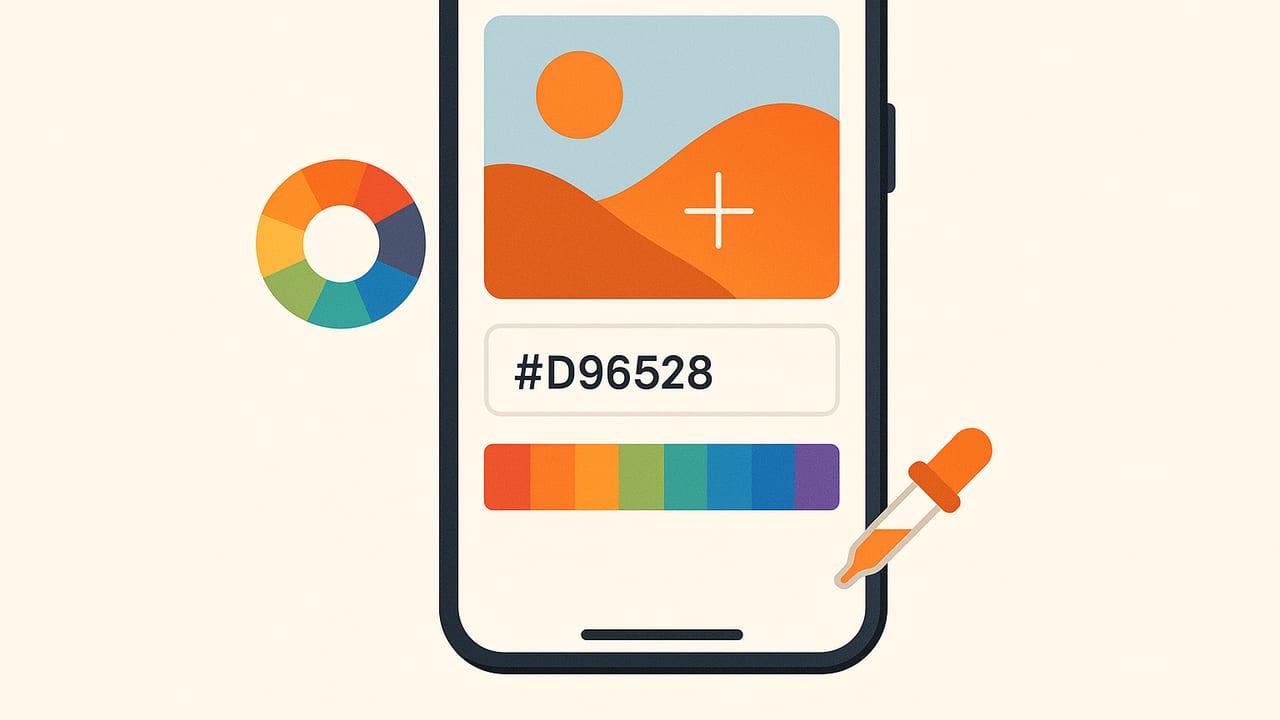
If you work with color on the go, the best HEX color picker for iPhone isn’t just a convenience—it’s a critical part of a reliable design workflow. Whether you’re a designer pulling brand hues from a photo, an interior decorator sampling paint shades, or a developer matching UI colors to real-world references, precision matters. This guide explains what “best” really means for a HEX color picker on iOS, how to measure accuracy, a pro workflow to reduce errors, and a short Swift snippet to convert sampled pixels to HEX correctly.
What Makes the Best HEX Color Picker for iPhone?
Choosing the right tool starts with knowing the criteria that actually impact results. Use this checklist to evaluate any app:
- Color accuracy and management: Correct handling of color spaces (Display P3 vs sRGB), proper conversion to HEX (which implies sRGB), and consistent results across devices.
- Sampling controls: Adjustable sample radius (1–25px+), average vs single-pixel sampling, magnification loupe, and the ability to avoid glare/highlights.
- White balance awareness: Tools or guidance to lock exposure/WB, or workflows that minimize camera bias from indoor lighting.
- Palette tools: Save, label, reorder, and export palettes; complementary and analogous scheme suggestions are a plus.
- Export formats: HEX (#RRGGBB), RGB, HSL/HSB, CSS variables, ASE/ACO/JSON, and image swatches for collaboration.
- Accuracy references: Optional support for gray cards or color targets and repeatable sampling from RAW/HEIF/JPEG.
- Performance and UX: Smooth zoom, lag-free sampling, and clear tap/drag controls.
- Privacy: On-device processing and transparent data practices.
- Value: Free core features with optional pro tools (batch export, advanced layouts, brand kits), not paywalled essentials.
Why Color Management on iPhone Matters
Many iPhones capture and display colors in Apple’s Display P3 color space. HEX values, however, conventionally represent sRGB. If an app doesn’t convert P3 to sRGB correctly before producing HEX, the values can drift—sometimes subtly, sometimes noticeably on saturated colors.
Key concepts to know:
- Display P3 vs sRGB: P3 covers more saturated reds and greens. HEX used on the web assumes sRGB. An accurate app converts P3 → sRGB for the final HEX value.
- True Tone and Night Shift: These change how colors look on screen but shouldn’t change the actual sampled pixel values. Still, disable them for visual consistency while sampling.
- HDR and tone mapping: HDR photos and high-brightness displays can visually shift tones. The app should use the image’s embedded profile and convert numerically, not visually.
Field-Proven Workflow: Get More Reliable HEX from Photos
Even with the best HEX color picker for iPhone, your technique determines accuracy. Use this step-by-step workflow:
- Disable display modifiers: Temporarily turn off True Tone and Night Shift for consistent visual judgment.
- Control lighting: Use daylight (open shade is ideal) or a neutral white LED. Avoid mixed lighting (window + incandescent) and direct glare.
- Add a neutral reference: Place a gray card or known color swatch in-frame. This helps verify if your sampling matches expectations.
- Lock exposure and white balance: In the Camera app, long-press to lock AE/AF; reduce exposure if highlights clip. This stabilizes capture across shots.
- Shoot steady: Capture multiple photos, including one slightly over and under the default exposure. Small bracketed variations can help you spot outliers.
- Sample with a radius: Prefer area-averaged sampling (e.g., 5–15px radius) to reduce sensor noise and JPEG artifacts. Avoid specular highlights, edges, and shadows.
- Use the loupe: Zoom in and confirm you’re sampling the intended region. Skin, wood, and fabrics often have subtle gradients—average across typical texture.
- Confirm in sRGB: Ensure the app’s export matches sRGB HEX. If you’re matching to web or CSS, this is essential.
- Validate against a target: If available, sample a known patch (from a reliable chart) and compare. If deltas are consistent, compensate mentally or note the bias.
- Save a palette: Group the final picks into a palette with labels, context images, and usage notes for future reference.
Pro tip: If a color looks off indoors, try resampling in daylight. Most mobile color disagreements come from mixed lighting and white balance drift, not from the picker itself.
Features to Look For (and How to Test Them)
| Feature | Why It Matters | How to Test |
|---|---|---|
| Color-space handling (P3 → sRGB) | Prevents wrong HEX on saturated hues | Sample a vibrant red/green photo. Compare to a desktop color-managed tool. |
| Adjustable sampling radius | Reduces noise and JPEG artifacts | Sample a textured fabric with 1px vs 11px radius; expect smoother averages. |
| Magnifier and high-precision cursor | Accurately targets pixels in tight areas | Try sampling along an edge; verify stability when moving one pixel. |
| Batch and palette management | Keeps projects organized and shareable | Create, label, and export a multi-swatch palette in under a minute. |
| Multiple export formats | Fits design-dev handoff workflows | Export HEX, RGB, HSL/HSB, and a CSS snippet; paste into your IDE. |
| On-device processing | Privacy and responsiveness | Turn off data; ensure full functionality works offline. |
Accuracy Deep Dive: Reducing Color Drift
To judge the best HEX color picker for iPhone objectively, consider a simple test methodology:
- Target: Photograph a known reference (e.g., a neutral gray card and a saturated color swatch) under daylight.
- Capture: Lock AE/AF, shoot multiple frames, avoid glare. If possible, include both a shadowed and a well-lit region.
- Sample: Use a 7–11px radius and record HEX outputs. Note the app’s declared color space on export.
- Compare: In a desktop color-managed environment, sample the same photo and convert to sRGB. Small differences are normal; consistent patterns indicate a conversion issue.
Common pitfalls to watch for:
- Visual vs numeric conversions: If an app “reads” what’s on screen after display adjustments, HEX will be skewed. Look for apps that convert numerically using the embedded profile.
- HDR highlights: Specular zones aren’t representative. Move the sampler slightly to avoid clipped pixels.
- Compression artifacts: HEIF/JPEG can introduce micro-blocking. A larger sample radius minimizes artifact bias.
Developers’ Corner: Swift Snippet for Accurate HEX
If you’re building or evaluating how a picker works, here’s a concise example using Core Image to average a region and convert to sRGB before exporting HEX. This demonstrates best practices in color management on iOS:
// Average a region of a UIImage, returning an sRGB UIColor
import UIKit
import CoreImage

func averageColor(in image: UIImage, rect: CGRect) -> UIColor? {
    guard let ciImage = CIImage(image: image) else { return nil }

    let extentVector = CIVector(x: rect.origin.x,
                                y: rect.origin.y,
                                z: rect.size.width,
                                w: rect.size.height)

    guard let filter = CIFilter(name: "CIAreaAverage") else { return nil }
    filter.setValue(ciImage, forKey: kCIInputImageKey)
    filter.setValue(extentVector, forKey: kCIInputExtentKey)

    let sRGB = CGColorSpace(name: CGColorSpace.sRGB)!
    let context = CIContext(options: [
        .workingColorSpace: sRGB,
        .outputColorSpace: sRGB
    ])

    guard let output = filter.outputImage else { return nil }

    var bitmap = [UInt8](repeating: 0, count: 4)
    context.render(output,
                   toBitmap: &bitmap,
                   rowBytes: 4,
                   bounds: CGRect(x: 0, y: 0, width: 1, height: 1),
                   format: .RGBA8,
                   colorSpace: sRGB)

    let r = CGFloat(bitmap[0]) / 255.0
    let g = CGFloat(bitmap[1]) / 255.0
    let b = CGFloat(bitmap[2]) / 255.0
    let a = CGFloat(bitmap[3]) / 255.0
    return UIColor(red: r, green: g, blue: b, alpha: a)
}

func hexString(from color: UIColor) -> String {
    var r: CGFloat = 0, g: CGFloat = 0, b: CGFloat = 0, a: CGFloat = 0
    color.getRed(&r, green: &g, blue: &b, alpha: &a)
    return String(format: "#%02X%02X%02X",
                  Int(round(r * 255)),
                  Int(round(g * 255)),
                  Int(round(b * 255)))
}
Notes:
- Coordinate space: Ensure
rectis in the CIImage coordinate system. If you’re sampling based on a UIImageView touch point, convert from view space to image space and account for orientation. - Color space: For web use, output HEX should reflect sRGB. The snippet sets both the working and output color spaces to sRGB for predictable results.
- Averaging: Area sampling (vs single pixel) yields more stable values, especially on textured or noisy areas.
Choosing by Use Case
Different roles prioritize different features. Here’s what to emphasize:
- Brand and product designers: Prioritize color-space accuracy, palette organization, and export to ASE/ACO or CSS variables. Helpful extras: harmony tools and contrast checkers (WCAG).
- Interior designers and decorators: Favor larger sampling radii, grid overlays, and note-taking. The ability to attach room photos and annotate swatches adds context when presenting to clients.
- Web and app developers: Look for hex/rgb/hsl, custom export templates (e.g., SCSS, Tailwind config), and batch copy/paste to speed implementation.
- Content creators: Quick sharing to social or notes, image swatch exports, and layout options for mood boards matter most.
Quick Troubleshooting Checklist
- My HEX looks different on desktop: Ensure your picker exports in sRGB. Also check your desktop preview tool—some viewers aren’t color-managed.
- Sampling gives noisy results: Increase the radius, sample a flatter area, and take another photo with better lighting and lower ISO.
- The color shifts between photos: Lock AE/AF, use consistent lighting, and avoid mixed temperature sources.
- Neon or very saturated colors look wrong: Keep in mind sRGB limits; ultra-bright pigments may fall outside the gamut. Your HEX is the closest sRGB match.
How to Evaluate Apps Without Bias
To pick the best HEX color picker for iPhone objectively, try this workflow across two or three candidates:
- Photograph a reference chart with saturated and neutral patches in daylight.
- Sample the same five patches in each app using the same radius.
- Export HEX and compare against a desktop color-managed sample (converted to sRGB).
- Time common tasks: creating a palette, exporting, and sharing to notes or a design tool.
- Check offline capability and data policies.
Rank results by accuracy, speed, and export flexibility. The “best” tool is the one you can trust to produce consistent HEX values with the fewest taps, plus exports that slot into your current pipeline.
Final Thoughts
The best HEX color picker for iPhone is the one that respects color management, gives you precise sampling controls, and streamlines palette creation and export. Pair a solid app with a good capture workflow—controlled lighting, area-averaged sampling, and sRGB exports—and you’ll get dependable HEX values that translate cleanly to web and product work. If you want a focused tool that extracts HEX, RGB, HSL, and HSB from photos and helps you build customizable palettes with multiple export formats, consider trying Color Viewfinder.