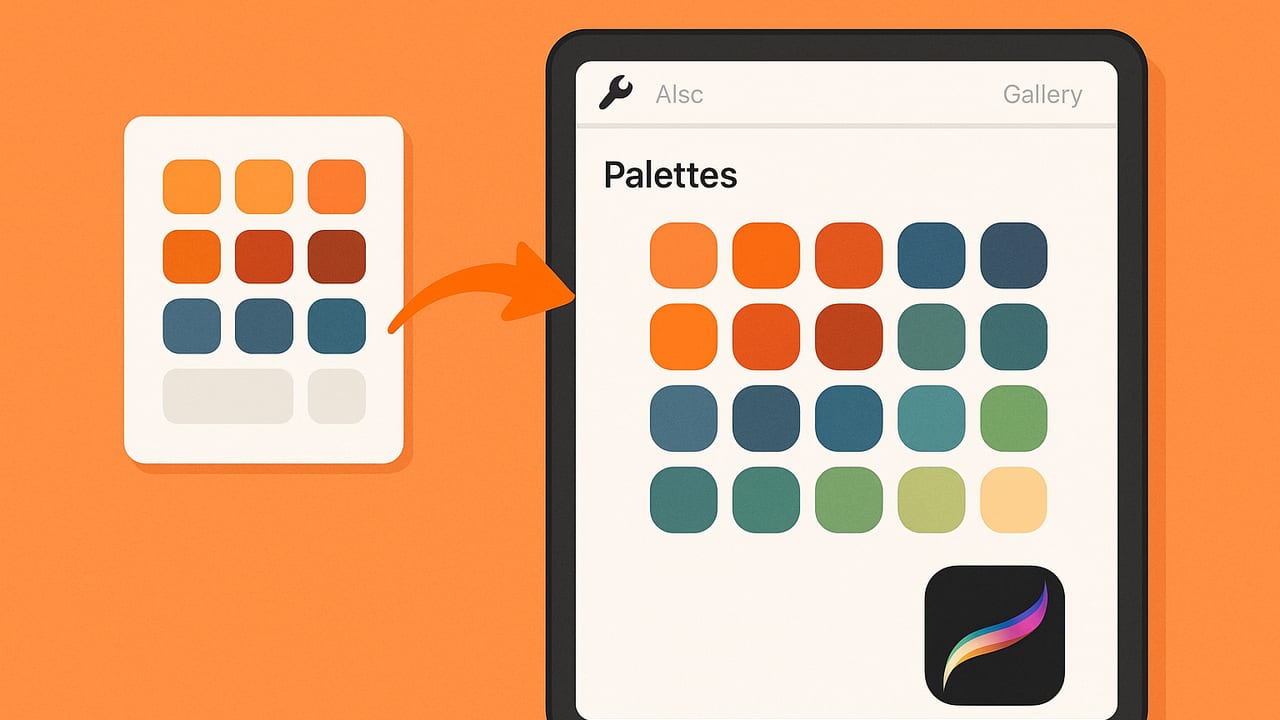
Designers and illustrators love how fast Procreate turns ideas into polished artwork. But a great Procreate workflow starts before the canvas: with accurate, organized color palettes. This guide shows you exactly how to export a color palette to Procreate on iOS and iPadOS, covering compatible formats, step-by-step import methods, and practical tips for consistent color.
What Procreate Accepts: File Types, Limits, and Behavior
Procreate (iPad) and Procreate Pocket (iPhone) both support importing palettes, but only certain routes are fully native. Understanding what works will save you time.
| Format / Method | Works with Procreate? | How to Use | Notes |
|---|---|---|---|
| .swatches (Procreate Color Swatches) | Yes (native) | Palettes panel > + > New from File; or open via Files/Share | Best option; up to ~30 colors per palette |
| Image (PNG/JPG) | Yes (auto-extract) | Palettes panel > + > New from Photos/Camera | Procreate samples colors from the image |
| ASE/ACO (Adobe) | No (direct) | Convert to .swatches or to an image first | Use a converter or export an image strip |
| CSV/TXT (hex list) | No (direct) | Build .swatches or make an image; then import | Manual entry also possible |
Key limits and behavior:
- Procreate palettes typically contain up to 30 swatches. If you import more via an image, Procreate will sample a representative set.
- Color management matters: canvases can be sRGB or Display P3. Palettes display under your current canvas/profile; keep profiles consistent across your workflow.
- On iOS, .swatches files can be opened directly from the Files app, via AirDrop, or through the iOS Share sheet.
Three Reliable Ways to Export a Palette to Procreate (iPad & iPhone)
Method 1: Import a .swatches file (fastest and most accurate)
If your source tool can generate a Procreate .swatches file, this is the cleanest path—names, order, and exact values are preserved.
- Save or export your palette as .swatches to iCloud Drive or On My iPad/iPhone.
- Open Procreate (iPad) or Procreate Pocket (iPhone).
- Tap the color circle (top-right) > go to the Palettes tab.
- Tap + and choose New from File.
- Locate your .swatches in Files and tap to import. Your palette appears under Palettes. Tap it and choose Set as Default if you want it on the main color disc.
Alternative: In the Files app, locate the .swatches file, tap and hold > Share > open in Procreate. If Procreate is installed, you should see "Open in Procreate" or the Procreate icon in the Share sheet.
Tips:
- Name before you import. Many apps let you name the palette. Procreate will keep that name.
- Keep it to 30 colors or fewer. If your source has more, split into themed sets (e.g., Brand Base, Brand Tints, Neutrals).
- Sync with iCloud. Put .swatches in iCloud Drive to access from iPad and iPhone.
Method 2: Generate a palette from an image (no .swatches needed)
When you can’t export .swatches, a palette image is the next-best route. Procreate can sample colors from any photo or image grid.
- Create a simple swatch sheet: a horizontal or grid image with solid color tiles. Save as PNG or JPG to Photos or Files.
- In Procreate, open the Palettes tab > tap + > choose New from Photos (or New from Camera to capture a printout).
- Select the image; Procreate auto-generates a palette from it.
How to make a swatch sheet in seconds with code (optional):
# Python 3 + Pillow (pip install pillow)
from PIL import Image

hex_colors = [
    "#1C1C1C", "#3B3B3B", "#777777", "#B1B1B1", "#EAEAEA",
    "#FF7A59", "#FFB870", "#FDE68A", "#6EE7B7", "#60A5FA",
    "#A78BFA", "#F472B6"
]

# settings
cols = 6
rows = (len(hex_colors) + cols - 1) // cols
cell = 160  # px
pad = 20    # px

img = Image.new("RGB", (cols*cell + (cols+1)*pad, rows*cell + (rows+1)*pad), "white")

for i, h in enumerate(hex_colors):
    r = int(h[1:3], 16)
    g = int(h[3:5], 16)
    b = int(h[5:7], 16)
    c = Image.new("RGB", (cell, cell), (r, g, b))
    x = pad + (i % cols) * (cell + pad)
    y = pad + (i // cols) * (cell + pad)
    img.paste(c, (x, y))

img.save("palette-grid.png")
print("Saved palette-grid.png")
Drop the resulting palette-grid.png into Photos or Files on your iPad/iPhone, then use New from Photos in Procreate. Pro tip: Keep each tile large and pure color (no gradients) for more accurate sampling.
Method 3: Manually add colors from HEX/RGB (precise and flexible)
When you only have a short list, manual entry is quick and exact.
- Copy your HEX code (e.g.,
#60A5FA) to the clipboard. - In Procreate, open the color panel > Palettes > tap + > Create new palette.
- Switch to the Value tab and paste/type the HEX (or enter RGB numbers).
- Tap an empty swatch square in the palette to add the current color. Repeat for each color.
Tips:
- Paste HEX in order so your palette reads logically (dark-to-light, warm-to-cool, brand-first, etc.).
- Rename the palette (tap the palette name) to keep sets organized.
Exporting from Popular Sources
From iOS color tools
- If your app exports .swatches, import directly in Procreate using New from File.
- If it exports PNG/JPG, save the image and use New from Photos.
- If you only get HEX/RGB lists, either build a quick image grid (see code above) or manually add colors in Procreate’s Value tab.
From Figma, Sketch, or web tools
- Export a swatch page/frame as a single PNG and use New from Photos.
- If you can export JSON/CSV, convert the list to a swatch grid image (script or design board) and import.
From Adobe (ASE/ACO)
- Procreate doesn’t import ASE/ACO directly. Use a converter to produce a .swatches file or a swatch image.
- When converting, verify the order and the RGB values, then import using Method 1 or 2.
Keep Colors Consistent: Profiles, Order, and Naming
Procreate supports both sRGB and Display P3 color profiles for canvases. While your palette exists separately, colors can appear slightly different when viewed on different profiles or displays. To maintain consistency:
- Pick one profile for the project. If your source tool works in sRGB, create your Procreate canvas in sRGB as well (Actions > Canvas > Canvas information > Color profile when creating a new canvas).
- Order swatches thoughtfully. Common patterns include:
- Hue wheel order (R → O → Y → G → C → B → M → R)
- Dark-to-light stacks per hue
- Brand Core → Neutrals → Accents → Alerts/States
- Name palettes and colors. You can rename a palette (tap its name). For individual color names, keep a reference sheet or include labels on your swatch image before importing.
Troubleshooting: Common Import Issues
“Open in Procreate” doesn’t appear for .swatches
- Ensure Procreate (or Procreate Pocket) is installed and updated.
- Move the file into the Files app (iCloud Drive or On My iPad/iPhone) instead of third‑party cloud viewers. Then tap & hold > Share.
- If AirDropping, choose Open in Procreate on the receiving device when prompted.
Colors look washed out or over-saturated
- Verify the canvas color profile. If your source is sRGB but your canvas is Display P3, you may perceive shifts. Create a test canvas in the matching profile and compare.
- Disable True Tone and Night Shift temporarily when evaluating color.
Palette imported but swatches are out of order
- If you used an image import, Procreate samples colors and may not preserve order. Create a clear, evenly spaced grid with solid tiles to improve results, or use .swatches.
Too many colors
- Split into multiple palettes of up to ~30 swatches. Name them by use case, collection, or hue family.
Duplicate or near-duplicate swatches
- When importing from photos, similar colors may collapse or repeat. Use a generated swatch image with high-contrast separation instead of a complex photo.
Speed Up Your Workflow with Shortcuts (Optional)
On iOS/iPadOS, the Shortcuts app can streamline palette handoff:
- Open latest .swatches in Procreate: A Shortcut can pick the newest .swatches file from a folder and open it in Procreate in one tap.
- Convert HEX list to image: Pair a quick Pythonista script (or another automation tool) to render a grid from copied HEX values, save to Photos, then trigger Procreate’s New from Photos.
Checklist: Best Practices for Exporting to Procreate on iOS
- Prefer .swatches for perfect order and values.
- Use image-based import when .swatches isn’t available; make a clean grid of solid tiles.
- Limit to ~30 swatches per palette; split large systems logically.
- Keep a consistent color profile (sRGB vs Display P3) from source to canvas.
- Disable display-affecting features (True Tone, Night Shift) during color-critical work.
- Name palettes clearly and set the current one as Default in Procreate.
Pro tip: If a tool can’t export .swatches, export both a swatch image (for fast import) and a text list of HEX/RGB (for precise manual tweaks later).
Example Workflow: From Photo to Procreate Palette in Minutes
- Sample colors from a photo and refine to a curated set (8–20 swatches is a practical sweet spot).
- Export a .swatches file if possible; otherwise export a labeled PNG grid.
- In Procreate, import the .swatches via New from File, or import the image via New from Photos.
- Open a new canvas in the target color profile (sRGB for web, Display P3 for wide-gamut print-like work).
- Set the palette as Default. Paint swatch strokes to visually confirm harmony and contrast on the actual canvas.
Once you’ve done it a couple of times, you’ll be able to export a color palette to Procreate on iOS in under a minute.
Note: If you enjoy building palettes directly from photos on your iPhone or iPad and want quick HEX/RGB/HSL readouts with exportable images for Procreate’s “New from Photos,” the Color Viewfinder app is a handy option.