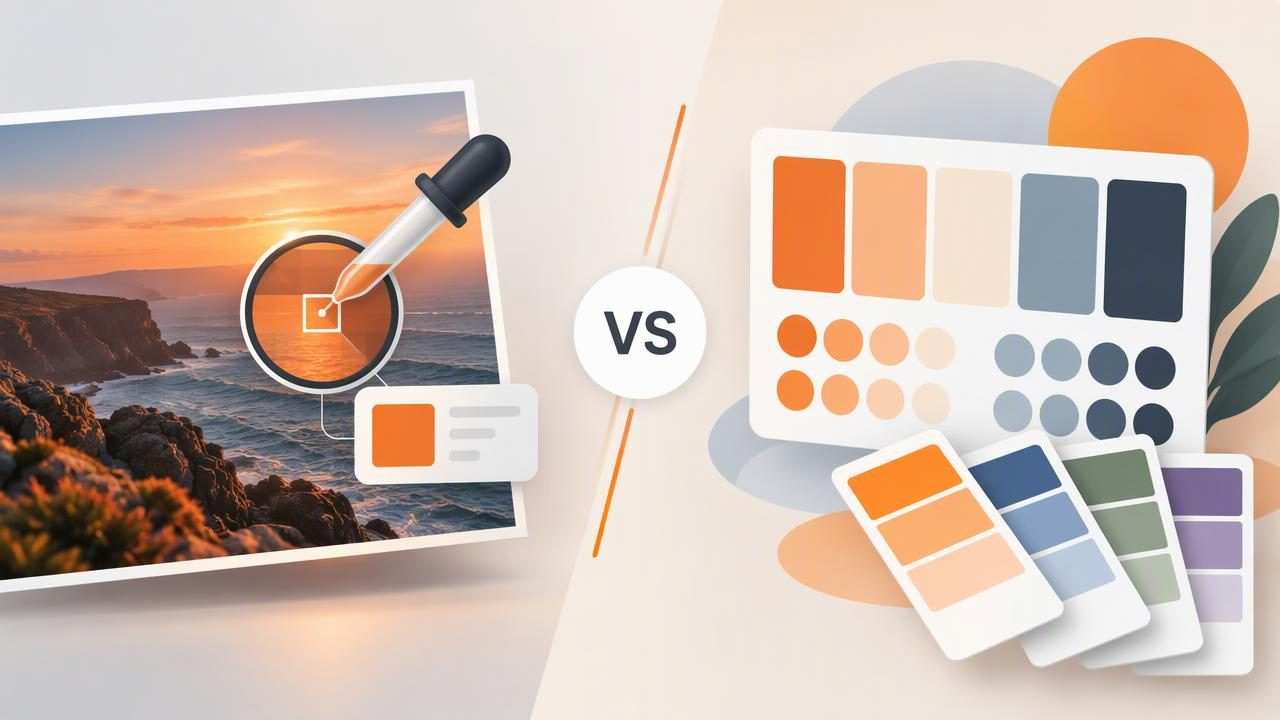
A HEX color finder and an online palette generator can both help you work with color, but they answer different questions. A finder helps you identify a color already present in an image or on screen. A generator helps you assemble or create a group of colors, often using a rule, a prompt, or a starting color. Some tools combine both functions, so the useful distinction is what you need to do—not whether the tool runs in a browser or on a phone.
If you are choosing colors for a logo, room, website, or other creative project, understanding that difference can save time. Here is how the tools work, when to use each one, and what their results can and cannot tell you.
What is a HEX color finder?
A HEX color finder identifies a color and gives you its hexadecimal code. HEX is a compact way to represent red, green, and blue values in digital design. For example, #B86F52 represents a particular combination of those three channels. The code can be copied into many design applications and web workflows.
When the finder works with a photo, you select or sample an area of the image. The tool reports the color represented by the sampled image data, often alongside values in other color models, such as RGB, HSL, or HSB. This is useful when you have a reference—a photograph, illustration, or product image—and want to inspect its colors rather than invent a palette from scratch.
A finder is especially helpful when you need to:
- Identify a particular accent color in a reference photo.
- Record color values for a design file or project brief.
- Compare several shades already present in an image.
- Copy a code into a digital design workflow.
What is an online palette generator?
An online palette generator creates or assembles a set of colors. Depending on the tool, you might start with one color, choose a harmony rule, adjust settings, enter a prompt, or provide an image. The output is intended to help you explore relationships among colors—for example, combinations that feel coordinated, contrasting, warm, or restrained.
Some generators can extract a palette from an uploaded photo, which overlaps with photo color pickers. Others produce suggestions without sampling any reference image. A generated palette is therefore not necessarily a record of colors in a photograph. It may be a designed set based on the generator’s controls or method.
Use a generator when you want to:
- Explore options for a project that does not yet have a fixed palette.
- Build a group of related colors from a starting hue.
- Try different combinations before settling on a direction.
- Get a broader color scheme rather than inspect one precise area.
HEX finder vs. palette generator: the key differences
| Question | HEX color finder | Online palette generator |
|---|---|---|
| Main purpose | Identify and report a color value | Create or arrange a group of colors |
| Typical starting point | A photo, graphic, or visible color | A seed color, rule, prompt, or image |
| Best for | Sampling and documenting a reference | Exploring color combinations |
| Typical output | HEX and sometimes RGB, HSL, or HSB values | A palette, often with several swatches and codes |
| Core question | “What color is this?” | “What colors could work together?” |
These are tendencies, not rigid categories. A photo palette tool may both sample colors and organize them into swatches. A browser-based color picker may be a finder, while a mobile app may include palette-making features. Check the specific tool’s functions rather than assuming that every online generator behaves the same way.
A practical example: choosing colors from a café photo
Imagine you are designing a small café’s social media graphics. Your reference photo shows terracotta tiles, a cream wall, dark lettering, and a green plant. You want the graphics to feel connected to the image, but you also need usable digital color codes.
- Sample the reference. Use a photo-based HEX color finder to inspect representative areas: a tile, the wall, the lettering, and a leaf. As an illustration only—not a measurement from a real photo—you might record a terracotta sample as
#B86F52, equivalent to RGB184, 111, 82. - Choose the colors that matter. A photo can contain many near-duplicates caused by shadows, highlights, texture, and compression. Keep a few useful colors that represent the intended design rather than treating every sampled pixel as a separate palette color.
- Explore supporting colors. If the sampled shades do not yet make a balanced graphic, use a palette generator to explore complementary or analogous options. Treat its suggestions as creative directions, not as colors that were necessarily present in the photograph.
- Test the palette in context. Apply the chosen shades to a sample post. Check text contrast, the visual weight of backgrounds, and whether the accent color competes with the message.
This workflow uses the finder for fidelity to the reference and the generator for exploration. If you only want the exact digital value represented by one area of the image, you may not need a generator. If you have no reference image and need ideas, sampling is unlikely to solve the whole problem.
How to choose the right tool for your task
Choose a HEX finder when accuracy to a digital reference matters
For a design handoff, it is helpful to document a selected color as a code rather than describe it as “warm brown” or “muted green.” A finder can give you a repeatable digital value to share with a teammate. If your workflow also needs RGB, HSL, or HSB, check whether the tool displays those formats and lets you copy or export them.
Remember that “accurate” here means accurate to the digital image data being sampled. It does not mean the code identifies the original physical material or guarantees how a color will look on every screen.
Choose a palette generator when you need ideas or relationships
When a project feels visually unresolved, a generator can help you compare combinations quickly. It is useful for early-stage concepts, mood boards, and digital graphics where you want to test several directions. You still need to judge whether the output suits the audience, subject matter, accessibility needs, and visual hierarchy of the project.
Use both when you have a reference and room to experiment
For illustration, branding concepts, or interior design planning, you may want to preserve the mood of a source image while developing a practical set of colors. Start with a finder to collect candidate colors, then use a generator or design application to explore additions and adjust the balance. Keep sampled colors and generated suggestions clearly labeled so collaborators know which came from the reference.
Limitations to keep in mind
- Lighting changes the image. A photo of a wall can look different under warm bulbs, daylight, shade, or mixed lighting. The sampled code describes the photo as captured, not a guaranteed value for the real wall.
- One object can contain many colors. Texture, reflections, shadows, and highlights mean there may not be one definitive HEX value for a painted surface, fabric, or leaf.
- Images are not print specifications. Display settings, file processing, color profiles, and output conditions can affect appearance. A digital HEX value does not guarantee print accuracy.
- Screen values are not physical paint matches. Use appropriate physical samples and professional specifications when selecting real finishes. A photo picker cannot promise a matching paint color.
- Generated palettes need review. A visually pleasing set of swatches may still have insufficient text contrast or fail to suit the project’s purpose. Test colors in their intended layout.
What to check before settling on a tool
Before committing to a workflow, ask what you need to leave with. If you need one code from a specific image area, prioritize image sampling and easy access to HEX values. If you need a collection of coordinated ideas, look for palette controls and a way to compare variations. For team workflows, check whether you can copy codes or export useful formats such as ASE, JSON, CSS, or CSV.
Also consider where you work. A browser tool may suit a desktop task, while a mobile app can be convenient when inspiration is already in your camera roll. Platform alone does not tell you whether a tool samples images, generates palettes, or supports the file formats you need; confirm those details before building a process around it.
The short answer
A HEX color finder is for identifying and documenting colors in a digital source. An online palette generator is for creating or exploring combinations. Choose based on whether your immediate question is “What is this color?” or “What colors could work together?” When both questions matter, sample first and generate second, then review the result in the actual design.
For a mobile photo-sampling workflow, Color Viewfinder’s guide to using a HEX color picker with a photo explains the image-based approach. The same principle applies across tools: treat sampled values as digital references, and make final decisions in the context where the colors will be used.