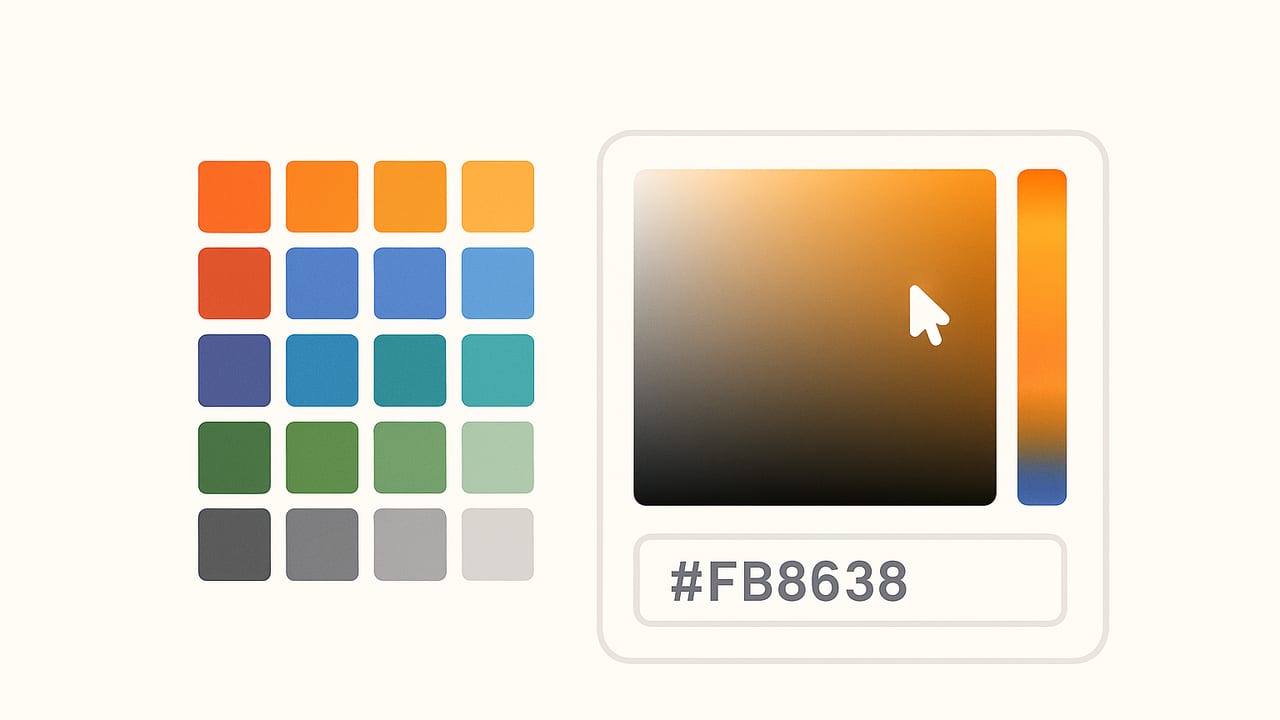
A hex color picker is a simple idea with powerful impact: choose a color, get its hexadecimal code, and use it consistently across the web, apps, and print. Whether you’re designing a brand palette, styling a website, or matching paint to textiles, a precise hex color picker helps you capture and reuse color with confidence.
This guide explains how hex color pickers work, where to find the best ones, how to avoid common pitfalls, and how to build a basic picker yourself. You’ll also learn quick accessibility checks so your colors meet contrast standards, plus practical tips for building reliable palettes.
What a Hex Color Picker Actually Does
A hex color code is a six-digit number (sometimes eight) that represents red, green, and blue values in base-16. The format is #RRGGBB, where each pair ranges from 00 to FF (decimal 0–255). For example, #FF6B00 is a bright orange: red at 255, green at 107, blue at 0.
- Standard:
#RRGGBB(e.g.,#1E90FF) - With alpha:
#RRGGBBAA(e.g.,#1E90FF80= 50% opacity) - Shorthand:
#RGB(e.g.,#0AFexpands to#00AAFF)
Most hex color pickers also display RGB, HSL, or HSB/HSV values. RGB mirrors how screens emit light. HSL/HSB are more intuitive for designing tints and shades because you can tweak lightness and saturation directly. Under the hood, nearly all hex pickers assume the sRGB color space, which is the default for the web.
Where to Find a Hex Color Picker
1) Browser DevTools and Eyedropper
Modern browsers ship with a built-in hex color picker in their Developer Tools. Inspect a CSS color, click the swatch, and you’ll get a picker that toggles HEX/RGB/HSL. Many also include an eyedropper to sample pixels anywhere on your screen, useful for grabbing colors from images or other tabs.
2) Design and Prototyping Apps
Design tools provide robust color pickers with palettes, styles, and shared libraries. You’ll usually get hex plus other formats, opacity controls, and blending previews. Some tools show contrast checks right in the picker.
3) System Color Pickers
Operating systems include system-level pickers: macOS has the Digital Color Meter and color panel; Windows offers a picker in PowerToys. These can sample colors across apps and return hex values.
4) Mobile Color Pickers
Mobile apps let you sample colors from photos and live camera views, ideal when you want to extract a palette from real-world scenes. Many also export palettes for sharing with design tools.
5) Command-Line and Open-Source Tools
On Linux and other platforms, utilities like gpick or extensions for code editors provide lightweight picking and palette capture. Developers often prefer these for their speed and scriptability.
How to Use a Hex Color Picker Effectively
- Zoom before sampling: Anti-aliased edges and gradients can trick your eye. Zoom to 200–800% to target the intended pixel.
- Sample a small area average: If your picker supports it, average a 3×3 or 5×5 area to reduce noise and texture artifacts.
- Watch opacity and overlays: UI colors may be semi-transparent or affected by shadows and blend modes. Sample the source asset if possible.
- Lock your color space: For web work, confirm the picker and export are in sRGB. Wide-gamut P3 values can look different on non-P3 devices.
- Check contrast on intended backgrounds: Sample the text color and background together, not in isolation.
- Name and save tokens: Convert hex values into semantic names or design tokens to keep usage consistent across codebases.
Build a Simple Hex Color Picker (HTML/JS)
Here’s a minimal browser-based picker using the native color input. It outputs HEX, RGB, and HSL values.
<!-- index.html -->
<label for="colorInput">Choose a color:</label>
<input type="color" id="colorInput" value="#1e90ff">

<div id="readout"></div>

<script>
  const input = document.getElementById('colorInput');
  const out = document.getElementById('readout');

  function hexToRgb(hex) {
    const h = hex.replace('#','');
    const bigint = parseInt(h.length === 3 ? h.split('').map(c => c + c).join('') : h, 16);
    return { r: (bigint >> 16) & 255, g: (bigint >> 8) & 255, b: bigint & 255 };
  }

  function rgbToHsl(r, g, b) {
    r /= 255; g /= 255; b /= 255;
    const max = Math.max(r, g, b), min = Math.min(r, g, b);
    let h, s, l = (max + min) / 2;
    if (max === min) { h = s = 0; }
    else {
      const d = max - min;
      s = l > 0.5 ? d / (2 - max - min) : d / (max + min);
      switch (max) {
        case r: h = (g - b) / d + (g < b ? 6 : 0); break;
        case g: h = (b - r) / d + 2; break;
        case b: h = (r - g) / d + 4; break;
      }
      h /= 6;
    }
    return { h: Math.round(h * 360), s: Math.round(s * 100), l: Math.round(l * 100) };
  }

  function render(hex) {
    const { r, g, b } = hexToRgb(hex);
    const { h, s, l } = rgbToHsl(r, g, b);
    out.innerHTML = `
      <p><strong>HEX:</strong> ${hex}</p>
      <p><strong>RGB:</strong> rgb(${r}, ${g}, ${b})</p>
      <p><strong>HSL:</strong> hsl(${h} ${s}% ${l}%)</p>`;
    out.style.borderLeft = `12px solid ${hex}`;
  }

  input.addEventListener('input', e => render(e.target.value));
  render(input.value);
</script>
If your browser supports it, you can add an eyedropper to sample any on-screen pixel using the EyeDropper API:
// Eyedropper (Chromium-based browsers)
async function pickFromScreen() {
  if (!('EyeDropper' in window)) { alert('EyeDropper not supported'); return; }
  const result = await new EyeDropper().open();
  // result.sRGBHex is a HEX string like "#1e90ff"
  document.getElementById('colorInput').value = result.sRGBHex;
  const event = new Event('input');
  document.getElementById('colorInput').dispatchEvent(event);
}
Check Accessibility: Contrast Ratios in Seconds
Readable text needs sufficient color contrast between foreground and background. WCAG 2.2 recommends a contrast ratio of at least 4.5:1 for regular text and 3:1 for large text (AA). AAA targets are 7:1 and 4.5:1.
// Contrast checker for two HEX colors
function hexToLuminance(hex) {
  const { r, g, b } = (function(h){
    const n = h.replace('#','');
    const v = parseInt(n.length === 3 ? n.split('').map(c => c + c).join('') : n, 16);
    return { r:(v>>16)&255, g:(v>>8)&255, b:v&255 };
  })(hex);
  const srgb = [r,g,b].map(v => v/255).map(c => c <= 0.03928 ? c/12.92 : Math.pow((c+0.055)/1.055, 2.4));
  return 0.2126*srgb[0] + 0.7152*srgb[1] + 0.0722*srgb[2];
}

function contrastRatio(hex1, hex2) {
  const L1 = hexToLuminance(hex1);
  const L2 = hexToLuminance(hex2);
  const lighter = Math.max(L1, L2);
  const darker = Math.min(L1, L2);
  return (lighter + 0.05) / (darker + 0.05);
}

// Example:
// contrastRatio('#1e1e1e', '#ffffff') ~ 14.0 (great)
Use this to verify your text/background pairs. If your hex color picker includes a built-in contrast badge, make it part of your design routine.
Best Practices and Pro Tips
- Design in sRGB, preview in P3: Start in sRGB for web compatibility, then preview in Display P3 to see how colors expand on wide-gamut screens.
- Build a tonal scale: Generate 8–12 steps of a color (e.g., using HSL lightness) for backgrounds, borders, and states.
- Use semantic tokens: Name colors by purpose (
--color-accent,--text-muted) instead of--blue-500to keep flexibility. - Test on diverse displays: Laptop, phone, and external monitor. Colors vary with brightness and True Tone/Night Shift.
- Simulate color vision: Use simulators (protanopia/deuteranopia/tritanopia) to confirm distinctions don’t rely solely on hue.
- Beware transparency: A semi-transparent hex (via alpha) will change with backgrounds; store an opaque equivalent for documentation.
- Mind CSS color levels: Modern CSS supports
hsl(),lab(), andoklch(). HEX remains the baseline, but perceptual spaces like OKLCH make scaling more predictable. - Lock artwork profiles: Export images with embedded sRGB ICC profiles to ensure sampled colors match hex expectations.
Popular Hex Color Pickers Compared
| Tool | Platform | Strengths | Notable Features |
|---|---|---|---|
| Chrome/Edge DevTools | Browser | Fast, always available for web work | Eyedropper, HEX/RGB/HSL toggle, contrast checks |
| Firefox DevTools | Browser | Developer-focused | Color swatches in CSS, accessible picker |
| Figma Color Picker | Desktop/Web | Design systems ready | Styles, libraries, blend modes, palettes |
| Adobe Color (Web) | Web | Palette exploration | Complementary/triadic themes, accessibility tools |
| Windows PowerToys Color Picker | Windows | Global eyedropper | Hotkey sampling, multiple formats |
| macOS Digital Color Meter | macOS | System-level sampling | sRGB conversion, precise pixel pick |
Troubleshooting: Why Does My HEX Look Different?
- Color profiles mismatch: Sampling a P3 image but applying the hex in sRGB will make colors look duller. Convert the source to sRGB before sampling.
- Opacity in the UI: If your design uses
#RRGGBBAAor CSS alpha, the perceived color changes with the background. Compare against the actual composite. - Anti-aliasing and gradients: Edge pixels mix colors. Sample away from borders, or average multiple pixels.
- Retina scaling: High-DPI displays can make single-pixel range selections trickier. Zoom in and use area sampling.
- Dark mode overrides: Tokens might remap between themes, leading to a different hex being applied than expected.
- CSS rounding: HSL manipulations in code can introduce rounding. Store canonical hex values for reference and generate variants programmatically.
Putting It All Together
A dependable hex color picker is essential for any workflow that involves color—branding, UI design, illustration, interior styling, even product photography. When you understand how hex maps to RGB, how pickers interpret color spaces, and how to validate contrast, your palettes become more deliberate and more accessible.
Start with a reliable picker (browser DevTools or a design tool), use sRGB, check contrast early, and save your colors as named tokens. If you need to extract hex colors from photos on the go, the iOS and iPad app Color Viewfinder can quickly convert images into editable palettes with HEX, RGB, HSL, and HSB values.
With a few best practices and the right tools, your hex color picker becomes more than an eyedropper—it becomes the backbone of a consistent, accessible color system.