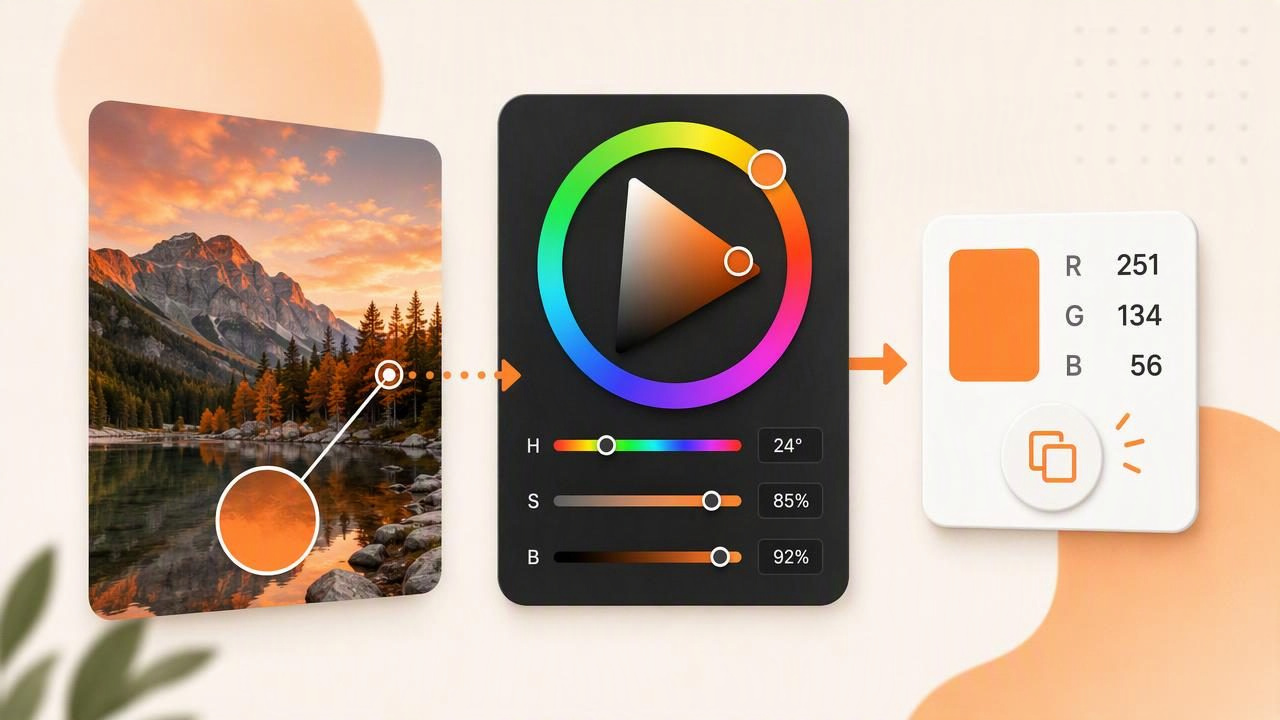
When you find a color you want to reuse, the challenge is rarely choosing it. The challenge is recording it in the format your next tool needs. A photo-inspired teal may look right in an HSB color picker, but your web project may require RGB values, while a design handoff may call for HEX or HSL.
Learning how to copy RGB values with an HSB color picker makes it easier to move colors between mobile devices, design software, presentations, websites, and creative briefs. Instead of approximating a color by eye, you can inspect its numerical values and reuse the same digital color wherever RGB is supported.
This guide explains how HSB and RGB relate, how to copy the right values from a color picker, and how to avoid common mistakes when working from photos.
What Is an HSB Color Picker?
An HSB color picker displays a color using three visual attributes:
- Hue: The color family, such as red, orange, blue, or green. Hue is typically measured from 0° to 360°.
- Saturation: The intensity of the hue. At 0%, a color has no hue and appears as a shade of gray. At 100%, the hue is vivid.
- Brightness: How light or dark the color appears. At 100%, the selected color is at its brightest available level; at 0%, it is black.
HSB is also frequently called HSV, where V stands for value. In many digital color tools, HSB and HSV describe the same practical model, although labels can vary by app or platform.
An HSB picker is useful because it mirrors how people often think about color: first choose a hue, then make it more muted or vivid, then adjust its lightness. RGB, by contrast, describes the amount of red, green, and blue light used to create a color on a screen.
HSB vs. RGB: Why You Need Both
HSB helps you select and adjust a color intuitively. RGB helps you use and reproduce that color in screen-based systems. RGB values contain three numbers, each usually ranging from 0 to 255:
- Red: 0–255
- Green: 0–255
- Blue: 0–255
For example, a soft ocean blue could appear as:
HSB: 199°, 54%, 76%
RGB: 89, 167, 194
HEX: #59A7C2
These are not three different colors. They are three ways of describing the same digital color. If you copy the RGB values correctly, you can enter them into a website style sheet, presentation software, image editor, or UI component that accepts RGB input.
| Color model | Best use | Typical format |
|---|---|---|
| HSB / HSV | Visual color selection and adjustments | 199°, 54%, 76% |
| RGB | Digital screens, interfaces, and software fields | rgb(89, 167, 194) |
| HEX | Web design and CSS | #59A7C2 |
| HSL | CSS adjustments and design systems | hsl(199, 45%, 55%) |
How to Copy RGB Values From an HSB Color Picker
The exact interface differs between design tools, but the process is consistent. The key is to use the HSB controls to find the color, then copy the RGB readout rather than trying to convert the values mentally.
- Select or sample the color. Choose a color in the HSB picker, or use an eyedropper to select a pixel from an image.
- Confirm the sampled area. Zoom in if possible. A single photo region may contain shadows, texture, highlights, and compression artifacts that create slightly different values.
- Open the color information panel. Look for labels such as RGB, channels, color values, inspector, or details.
- Locate the red, green, and blue numbers. They may be shown as separate fields, such as R 89, G 167, and B 194.
- Copy the values in the required format. Some tools copy a complete string, while others require you to copy each channel or manually enter the three numbers.
- Paste and verify. Check that the destination tool displays the same intended color before applying it widely across a project.
If your destination requires CSS, use the values in this format:
.accent-color {
  color: rgb(89, 167, 194);
}
If opacity is needed, use modern RGB syntax with an alpha value:
.overlay {
  background-color: rgb(89 167 194 / 70%);
}
Do not confuse an alpha value with an RGB channel. Alpha controls transparency; it does not change the underlying red, green, and blue color values.
A Practical Example: Building a Coastal Website Accent
Imagine you are creating a website for a boutique hotel and have a photograph of pale blue water, sandstone walls, and dark green plants. You use an HSB color picker to inspect a calm water area and find:
Hue: 199°
Saturation: 54%
Brightness: 76%
RGB: 89, 167, 194
The HSB values tell you the color is a blue-cyan hue with moderate saturation and a relatively bright appearance. But for your web stylesheet, you copy the RGB values:
:root {
  --water-blue: rgb(89, 167, 194);
}
You might use this blue for buttons, links, small icons, or decorative rules. Before making it a body-text color, test contrast against the actual background. A color that feels calm and readable at large size may not provide enough contrast for small text.
Next, sample a darker plant area for a supporting color. Rather than choosing a random green, you now have two colors that originated in the same image. This can help a digital palette feel visually connected without making every element the same color.
When RGB Values Are More Useful Than HSB Values
HSB values are excellent for choosing colors, but RGB values are usually more practical when you need to share an exact screen color. Copy RGB values when you are:
- Entering colors into website builders or CSS files
- Creating UI components and interface states
- Setting digital colors in presentation slides
- Documenting a palette for developers or collaborators
- Matching graphics across screen-based creative projects
- Building reusable color tokens in a design system
For teams, it is often useful to save both formats. HSB gives designers a quick way to understand the color’s character, while RGB gives implementation-focused collaborators a direct value to paste.
Common Mistakes When Copying RGB Colors
Copying HSB numbers into RGB fields
HSB and RGB use different scales and represent color differently. Entering 199, 54, 76 into RGB fields will produce a completely different color than an HSB value of 199°, 54%, 76%.
Sampling from an unreliable part of a photo
A photo is not a flat swatch. Reflections, digital noise, grain, gradients, and JPEG compression can affect individual pixels. Sample several nearby points and decide whether you need a representative midtone, a highlight, or a shadow color.
Ignoring display differences
RGB is a screen color model, but displays can still render the same values differently because of brightness settings, display calibration, ambient light, and color-management behavior. RGB values provide a repeatable digital specification, not a guarantee that every screen will look identical.
Assuming photo values are paint formulas
A sampled RGB value should not be treated as an exact physical paint match. Paint pigments, wall texture, lighting, sheen, and surrounding colors all affect perception. Use extracted digital colors as visual references for mood boards and planning, then evaluate physical materials in the real environment.
Use a Consistent Color-Naming System
After copying RGB values, give each color a meaningful name. Names make a palette easier to use than a collection of unlabeled numbers. Avoid vague labels such as “blue 1” when the palette will grow over time.
A clear naming pattern might look like this:
--coastal-water: rgb(89, 167, 194);
--sandstone-light: rgb(210, 187, 150);
--leaf-shadow: rgb(48, 89, 70);
For a larger system, include purpose as well as appearance: --brand-accent, --surface-muted, or --text-secondary. This reduces confusion if the palette changes later.
How to Make Photo-Sampled Colors More Reliable
Color extraction is most useful when it supports a deliberate workflow rather than replacing judgment. Use these practices to get more dependable RGB references:
- Sample from areas with even lighting when you want a stable base color.
- Take multiple samples from textured surfaces instead of trusting one pixel.
- Record the source image and sampled location for important project colors.
- Check colors on the device and platform where they will be used.
- Test text and interactive elements for sufficient contrast.
- Keep the original RGB values even if you later create lighter or darker variations.
For example, if a sampled blue is too bright for a button, retain the original RGB reference as the palette source. Then create a deliberate button variation rather than overwriting the sampled value and losing your starting point.
Final Takeaway
An HSB color picker is a fast, visual way to find the right hue, saturation, and brightness. Once you have selected the color, copying its RGB values lets you carry that choice into practical digital work. The reliable workflow is simple: sample carefully, inspect the RGB readout, copy the complete values, and verify the result in the destination tool.
For photo-based palette work on iPhone or iPad, Color Viewfinder’s guide to picking HEX colors from photos also explains how to inspect image colors and keep usable numerical references across creative projects.