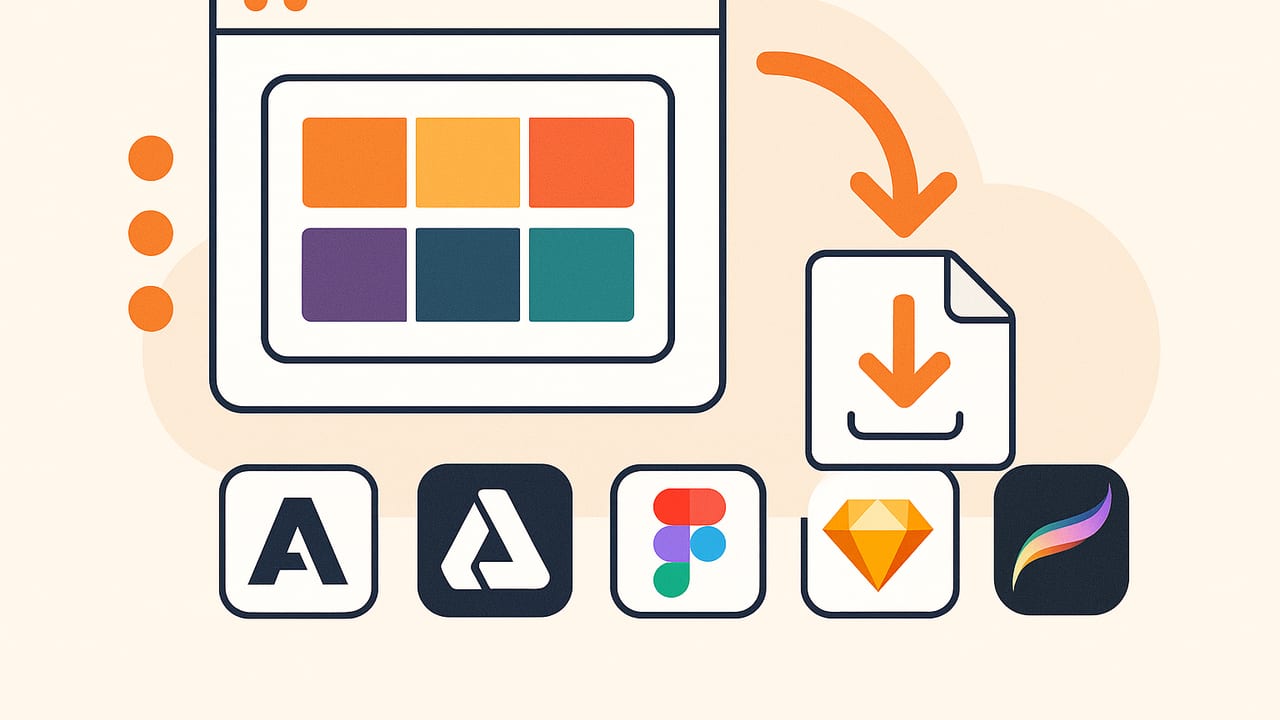
Moving a color palette cleanly from one app to another sounds easy—until you run into missing swatch names, shifted hues, or an app that won’t recognize your file. This guide explains how to export palette swatches to design software formats reliably, what each format supports, and practical workflows for Adobe, Affinity, Figma, Sketch, Procreate, GIMP/Inkscape, and the web.
Know your swatch file formats (and what they’re best for)
Different design tools prefer different palette containers. Choosing the right file type prevents color shifts and missing metadata.
| Format | Extension | Color models | Common apps | Notes |
|---|---|---|---|---|
| Adobe Swatch Exchange | .ase | RGB, CMYK, Lab, Gray | Illustrator, Photoshop, InDesign; Affinity (import) | Cross-Adobe and broadly supported; preserves names and groups. |
| Photoshop Swatches | .aco | RGB, CMYK, Lab, Gray | Photoshop (native) | Best for Photoshop-only workflows; not widely importable elsewhere. |
| Affinity Palette | .afpalette | RGB, CMYK | Affinity Designer/Photo/Publisher | Affinity-native; supports Application/Document palettes. |
| GIMP Palette | .gpl | RGB | GIMP, Inkscape, Krita (import) | Simple, widely supported in open-source tools; RGB only. |
| macOS Color List | .clr | RGB | System-wide on macOS, Sketch | Great for Mac teams; appears in many native color pickers. |
| Procreate Palette | .swatches | RGB | Procreate | iPad-native; requires conversion from ASE/GPL. |
| Sketch Palettes (plugin) | .sketchpalette | RGB | Sketch (via plugin) | JSON-based; handy for library handoffs. |
| CSS/SCSS variables | .css/.scss | sRGB HEX/RGB | Web, Figma (via paste/plugins) | Ideal for dev handoff and design tokens. |
| Design tokens (JSON) | .json | sRGB HEX/RGB | Style Dictionary, tokens pipelines | Best for multi-platform design system pipelines. |
Best-practice export workflow
- Decide the destination(s) first. Map out the tools your team uses. If your palette needs to land in Adobe, Affinity, and Figma, plan to generate at least an .ase (Adobe/Affinity) and a .css/.json for dev/Figma plugins.
- Work in the right color space. For screen work, build and export in sRGB. For print, provide CMYK alongside sRGB. Note: HEX implies sRGB; provide explicit CMYK values if print is in scope.
- Name every swatch consistently. Use semantic, scale-friendly names:
brand/primary/500,brand/primary/600, etc. Avoid spaces or special characters that some formats won’t preserve. - Deduplicate and sort. Merge near-identical colors; group swatches by role (brand, UI, neutrals, alerts). Groups survive in ASE and help teams find what they need.
- Export the native file first. From your primary tool (e.g., Illustrator, Affinity), export a master palette. Then create secondary exports (ASE, GPL, CSS, JSON, SWATCHES).
- Round-trip test. Import your exported palette into each target app. Verify color values and names, and scan for out-of-gamut warnings in print contexts.
- Document the palette. Include a README with color space, intended usage, and version/date.
- Automate when possible. Use scripts/converters to keep formats in sync and reduce manual steps.
App-specific export and import steps
Adobe Illustrator and Photoshop
Export from Illustrator:
- Open Swatches panel.
- Select your swatches (or keep them all). Avoid process color tints unless needed.
- Panel menu > Save Swatch Library as ASE… Choose a name and save.
Import into Illustrator:
- Swatches panel > Open Swatch Library > Other Library…
- Select the .ase file. The palette opens as a separate panel—click to add to document swatches.
Export from Photoshop:
- Open Swatches panel.
- Panel menu > Save Swatches for Exchange… to export .ase; use Save Swatches… for a Photoshop-only .aco.
Import into Photoshop:
- Swatches panel > panel menu > Import Swatches…
- Choose .ase or .aco. Names and groups from ASE will appear as color groups.
Tip: If you maintain both RGB and CMYK sets, add the model to group names, e.g., “Brand – RGB” and “Brand – CMYK.”
Affinity Designer/Photo/Publisher
Import ASE or AFPALLETTE:
- Open the Swatches Studio.
- Studio menu > Import Palette… Choose as Application (global) or as Document (file-specific).
Export AFPALLETTE:
- Swatches Studio > menu > Export Palette…
- Choose destination (Application/Document) to create .afpalette files for other Affinity users.
Affinity can also Create Palette from Document to capture colors used in the file—handy for audits.
Figma
Figma doesn’t natively import ASE/GPL files, but you can bring palettes in via plugins or by pasting CSS and converting to Variables.
Import via plugin (example workflow):
- Open your Figma file. Go to Resources > Plugins, search for an ASE/GPL Import plugin (e.g., “Color importer” or “Swatches”).
- Run the plugin and select your .ase or .gpl file.
- Generate Color Variables and publish them to a library.
Import via CSS paste:
- Create a .css file with root variables (see snippet below).
- Use a plugin that converts CSS variables to Color Variables.
- Organize variables in collections (e.g., Brand, Semantic, Neutral).
Tip: Ensure your HEX values are sRGB and verify contrasts for UI colors in light/dark themes.
Sketch
Using macOS .clr (system-wide):
- On macOS, open the Colors panel (any color well) > gear icon > Open to import a .clr file.
- These colors become available to Sketch and other native apps that use the Mac color panel.
Using the Sketch Palettes plugin:
- Install the “Sketch Palettes” plugin.
- File > Plugins > Sketch Palettes > Load Palette to import a .sketchpalette JSON.
- Save from one file and load into another to share palettes across teams.
Tip: If starting from ASE, convert to .clr or .sketchpalette with a converter to preserve names.
Procreate
Import:
- On iPad, tap Color > Palettes > the + icon > New from File.
- Select a .swatches file. The palette appears in your list.
From ASE/GPL to Procreate:
- Use a converter to transform .ase or .gpl to .swatches.
- AirDrop or Files app: tap the .swatches file and “Open in Procreate.”
Note: Procreate uses RGB; confirm your source colors are sRGB to avoid shifts.
GIMP and Inkscape
Export to GPL: If your source tool can export .gpl, do that directly. Otherwise, convert from ASE to GPL with a converter.
Install:
- GIMP: Place .gpl in the “palettes” folder (varies by OS) or import via Palettes dialog.
- Inkscape: Place .gpl in the “palettes” folder; restart Inkscape, then choose it from the Palettes bar.
GPL is simple and dependable for open-source pipelines but supports RGB only (no CMYK or LAB).
Exporting for the web: CSS variables and tokens
If your palette supports a website or design system, export a developer-ready version.
CSS variables example:
:root {
  --brand-primary-500: #1e63ff;
  --brand-primary-600: #124ddb;
  --brand-accent-500: #ff4f3e;
  --neutral-100: #f7f8fa;
  --neutral-900: #0e1116;
}

/* Optional RGB form for alpha overlays */
:root {
  --brand-primary-500-rgb: 30, 99, 255;
}
SCSS map example:
$colors: (
  "brand/primary/500": #1e63ff,
  "brand/primary/600": #124ddb,
  "brand/accent/500": #ff4f3e,
  "neutral/100": #f7f8fa,
  "neutral/900": #0e1116
);
Design tokens (JSON) example:
{
  "color": {
    "brand": {
      "primary": {"500": {"value": "#1e63ff"}, "600": {"value": "#124ddb"}},
      "accent": {"500": {"value": "#ff4f3e"}}
    },
    "neutral": {"100": {"value": "#f7f8fa"}, "900": {"value": "#0e1116"}}
  }
}
These structures import cleanly into tools like Style Dictionary, which can generate platform-specific outputs (CSS, iOS, Android) from one source.
Naming, grouping, and metadata that scale
- Use semantic names tied to purpose, not appearance:
brand/primary/500,text/on-brand,bg/surface. Avoidblue-1, which becomes ambiguous during redesigns. - Adopt a scale (50–900 or 100–1000) for tints/shades. This mirrors how UI frameworks and token pipelines operate.
- Group swatches by role: Brand, Neutrals, Semantic (success/warning/error), Data Viz (categorical, diverging, sequential).
- Document intent in a README: where each color should be used and any accessibility constraints.
Color accuracy and pitfalls
- sRGB vs Display P3: Many tools and browsers assume sRGB for HEX. If you designed in Display P3, convert and verify in sRGB for cross-app fidelity.
- CMYK is device-dependent: Provide CMYK values but also share the intended ICC profile for print (e.g., FOGRA39, GRACoL). Without a profile, results vary.
- Out-of-gamut warnings: Bright RGB colors may not reproduce in CMYK. Provide nearest-print matches and note deltas.
- Rounding differences: Some formats quantize to 8-bit integers. Minor deltas (±1) can occur—lock to HEX for screen specs to reduce drift.
- HSB/HSL vs stored values: Swatch files generally store absolute RGB/CMYK/Lab. HSB/HSL sliders in apps are UI helpers; they won’t survive as “HSB colors.”
Automation and conversion options
To keep multiple formats in sync, automate:
- From JSON tokens to CSS: Use a simple script or a tool like Style Dictionary to output CSS variables, SCSS, and platform-specific files.
- ASE/GPL converters: Use reputable converters to go between .ase, .gpl, .clr, and .swatches. Always validate after conversion.
- Batch renaming: If your tool supports it, normalize names (slugify, prefix by role) before export to keep names consistent across formats.
Example: generate CSS variables from token JSON (Node.js)
const fs = require('fs');
const tokens = require('./tokens.json');

function flatten(obj, path = []) {
  return Object.entries(obj).flatMap(([k, v]) => {
    const next = [...path, k];
    if (v && typeof v === 'object' && 'value' in v) {
      return [[next.join('-'), v.value]];
    }
    if (v && typeof v === 'object') return flatten(v, next);
    return [];
  });
}

const pairs = flatten(tokens.color);
const css = [":root {", ...pairs.map(([k, val]) => `  --${k}: ${val};`), "}"].join('\n');
fs.writeFileSync('palette.css', css);
A quick pre-handoff checklist
- Swatches named semantically and grouped logically.
- Provided in required formats: ASE for Adobe/Affinity, GPL for GIMP/Inkscape, CSS/JSON for dev, CLR/SketchPalette for Mac/Sketch, SWATCHES for Procreate.
- Color space noted (sRGB for screen; CMYK with ICC for print).
- Contrast checked for core UI text-on-background pairs (aim for WCAG AA/AAA).
- Round-trip tested in each destination app; spot-check for name preservation and color fidelity.
- README included with version, date, and usage notes.
Recommended format map by destination
- Adobe (Illustrator, Photoshop, InDesign): ASE (primary), plus ACO for Photoshop-only kits.
- Affinity suite: AFPALLETTE (native) and ASE (importable).
- Figma: CSS variables or JSON tokens via plugin import; or ASE via plugin.
- Sketch: CLR (system) or Sketch Palettes via plugin; convert from ASE as needed.
- Procreate: SWATCHES; convert from ASE/GPL.
- GIMP/Inkscape/Krita: GPL.
- Web/dev: CSS variables and token JSON.
Troubleshooting common issues
- Colors look dull in one app: Check color management. Ensure documents and color pickers are using sRGB for screen artifacts, and that the same ICC profiles are applied for print.
- Names disappeared: Some conversions drop names. Use formats that preserve names (ASE, JSON) and test the conversion tool you’ve chosen.
- Figma imported “unlinked” colors: After import, convert fills to Color Variables and publish a library so teams use linked, change-propagating colors.
- Sketch shows extra swatches: Remove system palettes from the Colors panel if they clutter. Keep project palettes separate and versioned.
- Procreate import fails: Confirm the file is .swatches (not .ase) and that the iPad recognizes the file via Files or AirDrop.
When your workflow starts with colors captured from photos, a mobile palette tool that exports multiple formats saves time. A single export to ASE, GPL, CSS, and image previews can streamline handoff to Adobe, Affinity, Figma, Sketch, and Procreate. One option on iPhone and iPad is Color Viewfinder, which extracts HEX, RGB, HSL, and HSB from photos and supports flexible palette exports.