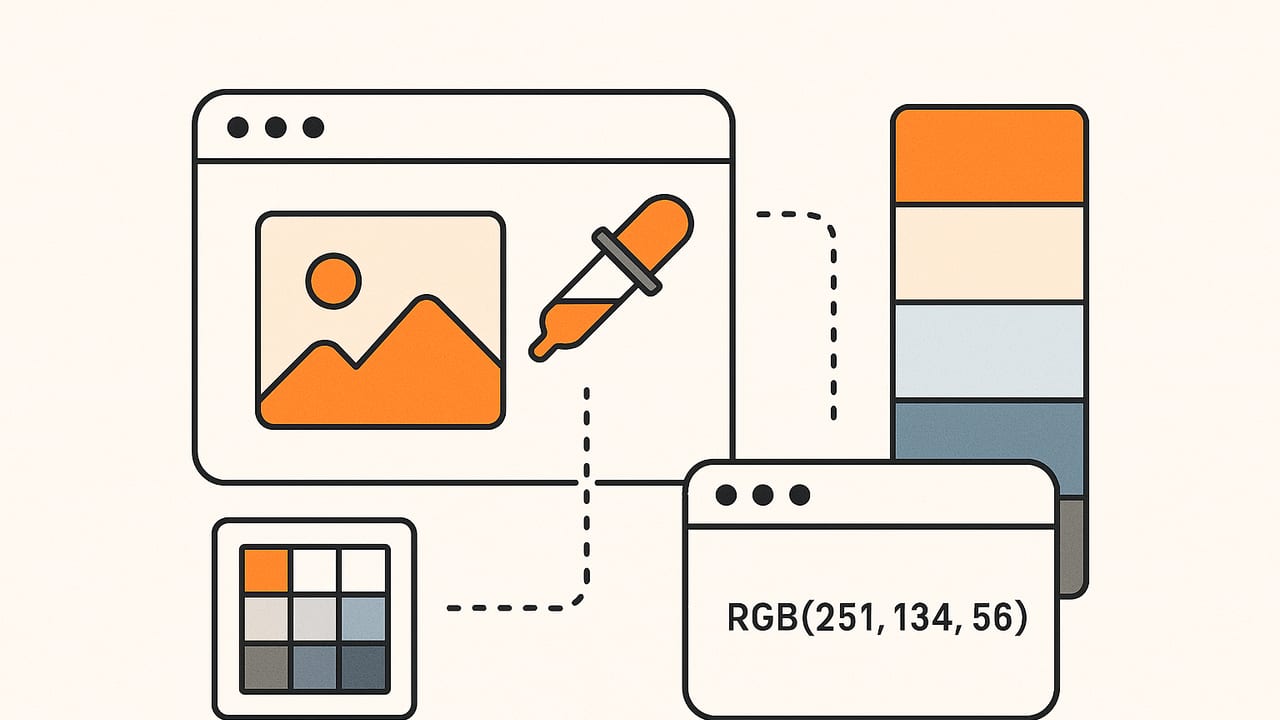
Whether you’re matching paint for an interior, building a brand palette, or designing a UI, knowing how to extract colors from an image is a powerful skill. This guide walks through the most reliable methods—manual, automatic, and code-based—to capture dominant colors and precise HEX, RGB, HSL, and HSB values from any photo.
Color isn’t just decoration; it’s information and emotion.
Color Models 101: HEX, RGB, HSL, and HSB
Before extracting, decide how you’ll represent color. Different models serve different workflows.
| Model | Looks Like | Great For | Notes |
|---|---|---|---|
| HEX | #34A853 | Web, CSS, design tokens | Compact; hex-encoded RGB. Ubiquitous on the web. |
| RGB | rgb(52, 168, 83) | Screen work, digital art | Additive color; easy to average or blend computationally. |
| HSL | hsl(137, 53%, 43%) | Palette variation | Hue, Saturation, Lightness make tints and shades intuitive. |
| HSB/HSV | hsb(137, 69%, 66%) | Art, UI controls | Brightness-based; intuitive for artists manipulating intensity. |
Methods to Extract Colors from an Image
1) Manual pickers in design software
- Photoshop: Open the image, select the Eyedropper tool (I), set Sample Size to 5×5 average for noise reduction, click areas to capture swatches, then add to your Swatches panel.
- GIMP: Use the Color Picker with an averaged sample and save colors to the palette dock.
- Illustrator/Figma/Sketch: Place the image, use the eyedropper to sample, then create styles or saved colors.
Pros: precision and context. Cons: manual, time-consuming for large palettes.
2) Automated palette extraction
Algorithms identify dominant colors by clustering similar pixels:
- K-means clustering: Common for extracting k dominant colors. Good balance of speed and quality.
- Median cut: Used in GIF quantization; good at producing representative palettes.
- Octree quantization: Efficient for large images; groups colors in a color-space tree.
Automated methods are ideal when you want a cohesive palette quickly or need to batch images.
3) In the browser with the Canvas API (JavaScript)
If you want to extract colors from an image on the web, the Canvas API lets you sample pixels directly in the browser.
// Average color from an image element (img) drawn to a canvas
const canvas = document.createElement('canvas');
const ctx = canvas.getContext('2d');

function averageColor(img) {
  const w = canvas.width = img.naturalWidth;
  const h = canvas.height = img.naturalHeight;
  ctx.drawImage(img, 0, 0, w, h);
  const { data } = ctx.getImageData(0, 0, w, h);
  let r = 0, g = 0, b = 0, count = 0;
  const step = Math.max(1, Math.floor((w * h) / 50000)); // sample ~50k pixels
  for (let i = 0; i < data.length; i += 4 * step) {
    r += data[i];     // R
    g += data[i + 1]; // G
    b += data[i + 2]; // B
    count++;
  }
  r = Math.round(r / count);
  g = Math.round(g / count);
  b = Math.round(b / count);
  const hex = '#' + [r, g, b].map(v => v.toString(16).padStart(2, '0')).join('');
  return { r, g, b, hex };
}
This snippet computes a quick average color. To get a full palette, apply k-means on the sampled RGB values and take the cluster centers.
4) Python for data-driven palettes
Python makes batch extraction and reproducible palettes straightforward.
# pip install pillow numpy scikit-learn
from PIL import Image
import numpy as np
from sklearn.cluster import KMeans

def extract_palette(path, k=6, resize=600):
    img = Image.open(path).convert('RGB')
    img.thumbnail((resize, resize))  # speed & anti-aliasing
    arr = np.array(img).reshape(-1, 3)

    # optional: subsample for speed
    if arr.shape[0] > 200000:
        idx = np.random.choice(arr.shape[0], 200000, replace=False)
        arr = arr[idx]

    kmeans = KMeans(n_clusters=k, n_init='auto', random_state=42).fit(arr)
    centers = np.rint(kmeans.cluster_centers_).astype(int)

    def to_hex(rgb):
        return '#' + ''.join(f"{c:02x}" for c in rgb)

    return [
        {
            'rgb': tuple(map(int, c)),
            'hex': to_hex(c)
        }
        for c in centers
    ]

if __name__ == '__main__':
    for swatch in extract_palette('photo.jpg', k=5):
        print(swatch)
Tip: Sort cluster centers by luminance or frequency to present a readable palette.
Step-by-Step Workflows
Quick web-based workflow
- Upload the image to a trusted in-browser color tool.
- Choose the number of colors (e.g., 5–8) for the palette.
- Copy HEX and RGB values; export swatches if available (ASE, GPL).
Best when you need a fast palette without installing software.
Photoshop workflow (dominant palette)
- Open the image and duplicate the layer.
- Go to Filter > Blur > Gaussian Blur (e.g., 8–20 px) to reduce noise.
- Image > Mode > Indexed Color > choose the number of colors; set palette to Local (Adaptive).
- Image > Mode > Color Table to view colors; export or sample into Swatches.
Indexed Color uses quantization (like median cut) to generate a representative palette.
Command line (ImageMagick)
# Get a 6-color histogram
magick input.jpg -resize 800x -colors 6 -format %c histogram:info:- | sort -nr | head
This returns the most frequent colors with counts. Convert RGB to HEX as needed.
Mobile workflow
- Open the photo in a color picker or palette app.
- Tap to sample colors or auto-generate a palette.
- Export HEX/RGB or save as a shareable palette image.
Perfect for on-the-go sampling from real-world scenes.
Handling Tricky Images
- Uneven lighting: Preprocess with exposure/white balance correction or sample from uniformly lit regions.
- High noise: Downscale or blur lightly before extraction to avoid pixel-level outliers.
- Gradients: Expect many similar colors; use clustering to summarize into a few representative stops.
- Transparent PNGs: Ignore fully transparent pixels, or premultiply against a known background.
- JPEG artifacts: Mild blur and resizing reduce compression edges affecting clusters.
From Colors to a Cohesive Palette
Once you extract colors from an image, refine them into a usable palette:
- Limit the set: 5–8 colors cover most interfaces; add neutrals as needed.
- Role assignment: Choose one primary, one accent, backgrounds, surfaces, and text colors.
- HSL tweaks: Adjust lightness for consistent contrast across states (hover/active), and saturation to balance vibrancy.
- Shades and tints: Generate a scale (e.g., 50–900) by stepping lightness and saturation systematically.
Test accessibility as you go. Aim for at least 4.5:1 contrast ratio for normal text and 3:1 for large text per common accessibility guidelines.
Exporting and Using Your Colors
- Web/CSS: Use HEX or HSL. Consider design tokens with CSS variables.
- Design tools: Export as ASE (Adobe Swatch Exchange) or GPL (GIMP) for easy import.
- Brand docs: List primary/secondary colors with usage notes and contrast pairs.
/* Example: design tokens as CSS variables */
:root {
  --color-primary: #2d6cdf;
  --color-accent: #f59e0b;
  --color-bg: #0b0f14;
  --color-text: #e5eef6;
}

.btn-primary { background: var(--color-primary); color: var(--color-text); }
Note: For print, designers often convert to CMYK with a color-managed workflow; expect slight shifts from screen colors.
Pitfalls and Best Practices
- Sampling bias: Cropping can change dominant colors dramatically. Extract from the final composition.
- Too many colors: More isn’t always better; limit to essentials to avoid visual noise.
- Outliers: Specular highlights or random objects can skew palettes. Mask or crop them out.
- Color management: Embedded profiles affect appearance. Convert to sRGB for web consistency.
- Context matters: A color that looks perfect in isolation may clash on your site. Prototype in context.
FAQs
What’s the difference between a dominant color and an average color?
The average color is the mean of all pixels—good for a quick background or blur hash. The dominant color is the most frequent or representative cluster center—better for brand or accent colors that match the image’s visual identity.
How many colors should I extract?
Five to eight typically covers UI needs: primary, accent, background, surfaces, text, plus a couple of supportive tones. For data visualization, consider more, but test accessibility and distinguishability.
How can I avoid muddy palettes?
Downweight shadows and highlights by sampling midtones, or preprocess with exposure correction. Use HSL to increase saturation slightly while keeping lightness balanced across the palette.
Can I get a palette from a gradient or watercolor image?
Yes. Use clustering to condense the continuum into 4–6 representative stops, then manually add tints/shades for a full scale.
What’s the best format to share colors with teammates?
For designers, share ASE or a palette image with HEX/RGB labels. For developers, provide a tokens file (e.g., JSON or CSS variables) with semantic names like color.primary and color.surface.
Putting It All Together
To extract colors from an image effectively: choose the right color model, preprocess to reduce noise, use clustering for a balanced set, refine with HSL for usability, and export as tokens or swatches. With a repeatable workflow—whether via design tools, browser code, or Python—you’ll get consistent results that translate beautifully from photo to product.
If you prefer a mobile workflow, Color Viewfinder on iOS and iPad can capture HEX, RGB, HSL, and HSB from photos and export customizable palettes in a variety of layouts.