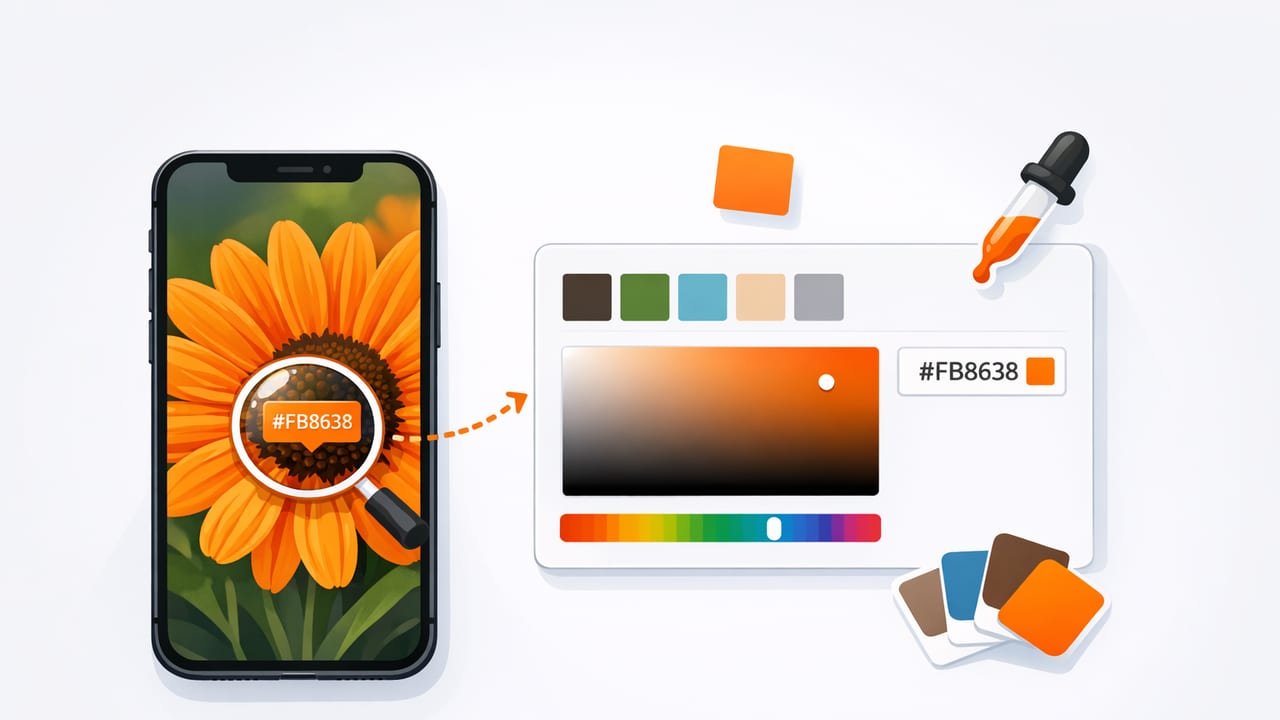
Pulling color from a photo sounds simple—tap a pixel, copy a HEX value, done. In practice, results can vary because photos are influenced by lighting, camera processing, compression, and even the screen you’re viewing them on. If you’re trying to extract hex codes from photos on iPhone for branding, UI, illustration, or interior mood boards, you’ll get better outcomes by using a repeatable method and knowing what can skew color.
This guide walks through reliable ways to sample color from images on iPhone, how to improve accuracy, and how to turn a handful of sampled pixels into a usable palette.
What a HEX code really represents (and why photos complicate it)
A HEX color code (like #1E90FF) is just a compact way to represent RGB values. Each pair of characters corresponds to red, green, and blue intensity from 00 to FF (0–255). That sounds objective—but photos are not “pure color sources.”
- Auto white balance shifts color temperature (warm vs cool) based on the scene.
- HDR and tone mapping change local contrast and color saturation.
- JPEG compression introduces artifacts that alter pixel values.
- Shadows and reflections mean the “same object” can have many colors across its surface.
So the goal isn’t always to find the single “true” HEX value—it’s to find useful values that represent the visual impression you want to reproduce.
Before you sample: prep the photo for better HEX accuracy
If you want consistent results when you extract hex codes from photos on iPhone, spend 60 seconds improving the source image first:
- Choose the best version of the photo: prefer the original or highest-resolution copy (avoid screenshots of screenshots).
- Avoid night mode or heavy filters when possible; they often exaggerate color.
- Use a neutral reference area (white paper, gray wall) if the photo includes one—this helps you judge color casts.
- Stabilize exposure: in the Camera app, tap and hold to lock AE/AF before taking the shot.
- Edit lightly (optional): in Photos, reduce “Warmth” or “Tint” if the image clearly leans too yellow/green.
Tip: If you’re sampling product colors, shoot in indirect daylight near a window and avoid mixed lighting (e.g., daylight + tungsten lamps).
Method 1: Use an iPhone color picker app (fastest for palettes)
Dedicated color-picker apps typically let you load a photo, zoom into pixels, and copy values like HEX/RGB/HSL. They’re often the best choice when you need:
- multiple samples from the same image,
- palette organization (dominant/accent/neutral),
- exports (ASE, SVG, CSS variables, etc., depending on the tool).
Workflow for clean results:
- Open your image and zoom in until you can see the area you want clearly.
- Sample 3–7 points: usually one dominant, two supporting, one accent, and one neutral.
- For each color, sample twice in nearby pixels and keep the value that best matches the area visually.
- Label colors by role (e.g., Primary, Background, CTA, Text) rather than by object name (“leaf green”).
Where to tap (so your HEX values make sense)
- Mid-tones: sample areas that are not highlights or deep shadows.
- Avoid specular highlights: shiny reflections can push colors toward white and distort saturation.
- Average visually: if the surface is textured (fabric, wood grain), sample a few pixels and choose a representative middle.
Method 2: Extract HEX from a photo using web tools on iPhone
If you don’t want to install anything, you can use a web-based color picker. The basic idea is the same: upload the photo, click/tap to sample, copy the HEX code.
Best practices on iPhone Safari:
- Use “Request Desktop Website” if the tool’s mobile interface is limited.
- Prefer tools that allow zoom/pixel-level selection (otherwise tapping is imprecise).
- Save the image to Files or Photos first; don’t rely on loading from a compressed preview.
This approach is good for occasional use, but it’s usually slower for building multi-color palettes.
Method 3: Sample colors in design apps you already have (Keynote, Canva, etc.)
Some iOS design apps include an eyedropper tool for picking colors from placed images. If you already use one for presentations or social graphics, it can double as a quick HEX extractor.
- Import the photo into a canvas.
- Select a shape or text color, open the color controls, and use the eyedropper.
- Look for an option to view or copy the numeric value (some apps show RGB, some show HEX, some only show a visual slider).
This works well when your end goal is in that same app, but it may be limited if you need consistent HEX output or palette exports.
Quick comparison: which method should you use?
| Method | Best for | Pros | Cons |
|---|---|---|---|
| Color picker app | Building palettes from photos | Fast sampling, zoom precision, multiple formats | May require install; advanced exports may be paid |
| Web tool in Safari | One-off HEX checks | No install, works anywhere | Upload friction, mobile UI can be fiddly |
| Design app eyedropper | Designing inside that app | Integrated workflow | HEX not always available; weaker palette management |
How to turn sampled HEX codes into a usable palette
After you extract hex codes from photos on iPhone, you’ll often end up with colors that look nice together but don’t behave well in real layouts (text contrast, hierarchy, or too much saturation). Here’s a practical way to refine them:
1) Pick roles: dominant, support, accent, neutral
- Dominant: the main background or large surface color.
- Support: secondary backgrounds, panels, cards.
- Accent: buttons, highlights, calls-to-action (use sparingly).
- Neutral: off-white, gray, charcoal for text and spacing.
2) Create a text-safe pair (contrast check)
Even if a color is “from the photo,” it may not be readable for UI text. As a rule, keep at least one very dark and one very light neutral in your palette. If you don’t have them naturally, derive them from the image by sampling the deepest shadow and brightest non-glare highlight.
Design note: A palette can be faithful to the photo while still adjusting one or two values for accessibility and readability.
3) Reduce duplicates (near-identical colors)
Photos often yield multiple samples that are only slightly different (e.g., #C9B8A6 vs #C8B7A5). Keep one and remove the rest—unless you intentionally need a tint/shade scale.
Common problems (and fixes) when extracting HEX from photos
The HEX changes when I sample “the same spot”
This usually happens because you’re tapping adjacent pixels affected by texture, noise, or compression. Fix it by zooming further and sampling mid-tones, then choosing the most representative value.
My palette looks dull compared to the photo
Photos include context—contrast, neighboring colors, and lighting—that make colors feel richer. If extracted swatches look flat, try adding:
- one darker shade of the dominant color for depth,
- one brighter accent from a highlight area (but not pure glare),
- a warm/cool neutral to balance temperature.
The printed result doesn’t match my HEX colors
HEX is RGB (screen color). Printing uses CMYK and paper absorbs ink differently. If print accuracy matters, treat extracted HEX as a starting point and convert using a print workflow (and ideally test on the target paper).
Bonus: Convert RGB to HEX (if a tool only gives RGB)
Sometimes an iPhone tool provides RGB values but not HEX. Here’s how to convert programmatically.
JavaScript (web, quick conversion)
function rgbToHex(r, g, b) {
  const toHex = (n) => n.toString(16).padStart(2, '0');
  return `#${toHex(r)}${toHex(g)}${toHex(b)}`.toUpperCase();
}

rgbToHex(30, 144, 255); // #1E90FF
Swift (iOS)
func rgbToHex(r: Int, g: Int, b: Int) -> String {
    String(format: "#%02X%02X%02X", r, g, b)
}

let hex = rgbToHex(r: 30, g: 144, b: 255) // #1E90FF
A simple checklist for consistent HEX extraction on iPhone
- Start with a clean image: high-res, minimal filters.
- Sample mid-tones: avoid glare and deep shadow unless intentional.
- Take multiple samples per region and choose a representative value.
- Assign roles (dominant/support/accent/neutral) to avoid random palettes.
- Verify readability: ensure you have light/dark neutrals for text.
Final thought
The fastest way to improve results when you extract hex codes from photos on iPhone is to treat sampling as curation, not just measurement: pick representative mid-tones, define roles, and refine for real-world use (screens, print, accessibility). If you prefer doing this all on-device with palette layouts and export options, an iOS tool like Color Viewfinder can make the workflow more streamlined—just keep the accuracy tips above as your foundation.