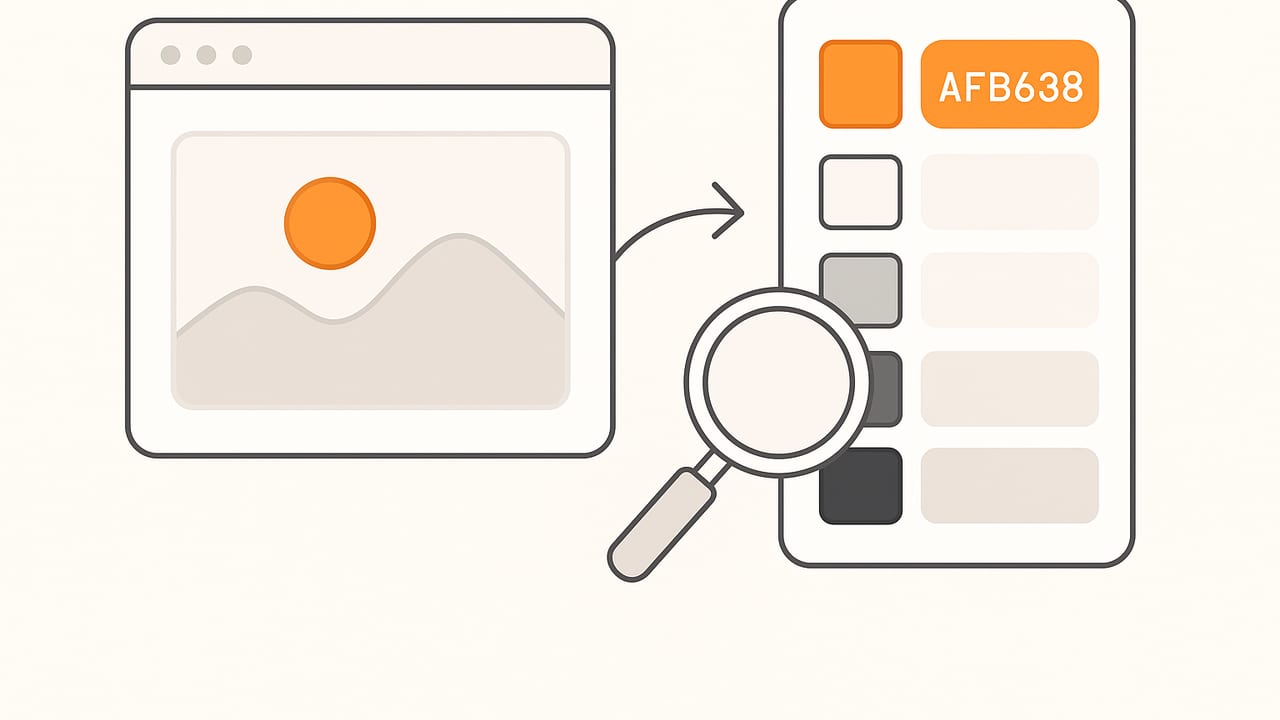
Whether you are building a brand palette, matching paint, or styling a website from a mood shot, the ability to extract hex colors from photos with confidence is essential. Done right, you will capture the hues you actually see. Done casually, you will sample glare, noise, or device shifts and end up with colors that look wrong in production. This guide walks through practical workflows, core algorithms, code samples, and pro checks to help you get reliable HEX values from images.
HEX in context: what your color really means
HEX is a compact way to represent sRGB values. For example, #33A1FF corresponds to RGB 51, 161, 255 in the sRGB color space. Each pair of hex digits maps to one color channel, 00 to FF for 0 to 255. Most web and UI systems expect HEX to represent sRGB, not Display P3 or Adobe RGB. If your photo is Display P3 and you copy a numeric color without converting to sRGB, your HEX will not match what others see on typical displays.
Key points to remember:
- HEX implies sRGB transfer curve and primaries.
- Photos can carry different ICC profiles such as Display P3 or Adobe RGB; convert before you sample.
- Gamma matters. Sampling should occur after proper color management, not on raw encoded bytes.
Why photos are tricky for accurate sampling
Photos are not flat graphics. They include lighting variability, compression, sensor noise, and white balance shifts. These factors can nudge your sampled color away from the real-world hue you intended.
- White balance and lighting temperature can shift hues warm or cool.
- JPEG compression introduces blocks and ringing that pull pixels toward averaged colors.
- Noise and texture mean a single pixel is rarely representative.
- Specular highlights and shadows are outliers; sampling them yields misleading values.
- Color management issues arise if you ignore embedded ICC profiles.
The lesson: be intentional about how you sample and convert before you output HEX.
Step-by-step workflow to extract hex colors from photos accurately
- Capture in controlled light Use diffuse, consistent lighting. Avoid mixed color temperatures. If possible, include a neutral gray card in the frame for white balance correction.
- Respect color profiles When importing the image, preserve and read the embedded ICC profile. Convert to sRGB for web and general UI use. On Apple devices, photos may be Display P3; convert to sRGB before sampling.
- Correct white balance and exposure White-balance the image using the gray card or a neutral surface. Adjust exposure so midtones are accurate without clipping highlights.
- Denoise and downscale wisely Light denoising can stabilize sampling. If downscaling, use a high-quality filter such as Lanczos. Avoid extreme resizing that changes the perceived color distribution.
- Choose a sampling strategy For flat areas, average a 5x5 or 9x9 region instead of a single pixel. For textured areas, consider the median color, which is less sensitive to outliers.
- Extract a palette if needed For complex scenes, run a palette extraction algorithm to find dominant colors. Limit to a practical number of swatches like 5 to 12.
- Convert to HEX After color-managed sampling in sRGB, round channel values and format as #RRGGBB.
- Validate usability For UI or text, check WCAG contrast ratios. For brand use, verify consistency across devices and lighting.
Sampling techniques that reduce error
- Single-pixel Fast but fragile. Use only on flat, noise-free areas.
- Average of a region Averages N x N pixels to stabilize color. Great for painted walls, skies, or uniform materials.
- Median of a region More robust than average for textured surfaces, because it resists extreme highlights and shadows.
- Mode or histogram peak Useful when you want the most common local color rather than the mathematical mean.
Tip: For product shots, avoid sampling glossy specular highlights, which are near white and not representative of the actual material color.
Algorithms for palette extraction
When you need a concise palette from a complex image, color quantization algorithms cluster similar colors into a manageable set.
| Algorithm | Strengths | Trade-offs | Best for |
|---|---|---|---|
| Median Cut | Fast, simple, classic quantizer | May miss small but important accents | General-purpose palettes |
| K-means (in Lab) | Good control over number of clusters; perceptually meaningful in Lab/LCH | More compute; sensitive to initialization | Brand palettes and UI sets |
| Octree | Efficient memory usage; fast insertion | Less perceptual accuracy unless weighted | Real-time or large batches |
| Hierarchical clustering | Flexible merging; can include constraints | Slower on large images | Curated palettes with manual oversight |
For human-friendly results, cluster in a perceptual space such as CIELAB or LCH and measure distances with Delta E (for example, CIEDE2000). This aligns grouping with visual similarity better than Euclidean distances in RGB.
Code example: extract hex colors from photos with Python
The following example uses Pillow and scikit-learn to extract N dominant colors via K-means. It converts to sRGB if the image is managed by Pillow, downsamples for speed, and outputs HEX swatches.
# pip install pillow scikit-learn numpy
from PIL import Image, ImageCms
import numpy as np
from sklearn.cluster import KMeans

def image_to_srgb(img):
    # Attempt profile-aware conversion to sRGB if profile info exists
    try:
        icc = img.info.get('icc_profile')
        if icc:
            srgb_profile = ImageCms.createProfile('sRGB')
            src_profile = ImageCms.ImageCmsProfile(bytes(icc))
            transform = ImageCms.buildTransform(src_profile, srgb_profile, img.mode, 'RGB')
            return ImageCms.applyTransform(img, transform)
    except Exception:
        pass
    return img.convert('RGB')

def dominant_hex_colors(path, n_colors=6, sample_size=400_000):
    img = Image.open(path)
    img = image_to_srgb(img)

    # Downscale to limit pixels for clustering while preserving structure
    w, h = img.size
    scale = (800.0 / max(w, h)) if max(w, h) > 800 else 1.0
    if scale < 1.0:
        img = img.resize((int(w * scale), int(h * scale)), resample=Image.LANCZOS)

    arr = np.asarray(img).reshape(-1, 3)
    if arr.shape[0] > sample_size:
        idx = np.random.choice(arr.shape[0], sample_size, replace=False)
        arr = arr[idx]

    # K-means in RGB; for better perceptual quality, convert to Lab with skimage
    kmeans = KMeans(n_clusters=n_colors, n_init='auto', random_state=42)
    kmeans.fit(arr)
    centers = np.clip(kmeans.cluster_centers_.round().astype(int), 0, 255)

    def to_hex(rgb):
        return '#' + ''.join(f'{c:02X}' for c in rgb)

    # Order by prevalence
    labels = kmeans.labels_
    counts = np.bincount(labels)
    order = np.argsort(-counts)
    hex_colors = [to_hex(centers[i]) for i in order]
    return hex_colors

if __name__ == '__main__':
    print(dominant_hex_colors('photo.jpg', n_colors=6))
Enhancements you might add:
- Convert to Lab before clustering for better perceptual grouping.
- Exclude extreme highlights and deep shadows to prevent outliers from dominating.
- Use median pooling in local regions prior to clustering to stabilize textures.
Mobile workflows and color management notes
- RAW vs JPEG RAW gives more latitude for white balance and exposure, but you must process it in a color-managed app before sampling. JPEG or HEIC is fine if profiles are respected.
- Display P3 on modern devices Many smartphone photos are saved with a Display P3 profile. Convert to sRGB to produce HEX that matches typical web rendering.
- Export settings When saving screenshots or edited images for sampling, embed the correct profile and avoid applying creative filters that shift color.
- Avoid screen reflections If sampling from a photo of a screen, reflections and moiré will distort colors. Take direct screenshots when possible.
From sample to stylesheet: make palettes practical
Once you extract hex colors from photos, organize them for actual use. Group by role, not just hue: background, surface, text, accent, and state colors. Consider separate palettes for light and dark themes.
Example using CSS variables with contrast-aware naming:
:root {
  --brand-50: #F2F7FF;
  --brand-500: #3388FF;
  --brand-700: #1E5FCC;

  --text-on-brand: #FFFFFF; /* meets contrast on brand-500 and 700 */
}

/* Usage */
.button-primary {
  background: var(--brand-500);
  color: var(--text-on-brand);
}
Accessibility and verification
Colors extracted from photos are inspiring but must meet practical constraints.
- Contrast For body text, aim for a 4.5:1 contrast ratio (WCAG AA). For large text, 3:1 is acceptable. Tools can programmatically check new HEX pairs.
- Color blindness Ensure critical states do not rely on hue alone. Add secondary cues such as icons, patterns, or text.
- Cross-device preview Preview on both a wide-gamut device and a standard sRGB display. Slight adjustments may be needed.
Common pitfalls to avoid
- Sampling without profile conversion Copying numeric RGB from a P3 image and pasting as HEX for web will misrepresent the intended color.
- Single-pixel obsession Do not rely on one pixel; average or median sampling is more trustworthy.
- Sampling highlights Specular highlights and flash glare are not the true material color.
- Over-quantizing Extracting 20+ colors creates noise, not a palette. Curate down to a coherent set.
- Ignoring lighting context A color matched under warm light may look wrong under cool light. Add notes about intended lighting when documenting palettes.
- Compression artifacts Highly compressed images skew sampling. Use higher quality sources when possible.
A quick checklist for reliable HEX extraction
- Open the image with its embedded ICC profile intact.
- Convert to sRGB before sampling for web use.
- White-balance and correct exposure first.
- Average or median-sample regions, not single pixels.
- Use palette extraction algorithms for complex scenes.
- Export HEX and verify accessibility and contrast.
- Document source, method, and any adjustments for future reference.
FAQ
Do I need wide-gamut HEX like P3 HEX
There is no separate P3 HEX. HEX is conventionally sRGB. Wide-gamut colors for CSS can use color functions such as color(display-p3 r g b), but that is not HEX. For cross-compatibility, produce sRGB HEX and, if needed, offer a progressive enhancement using color functions.
What is the most accurate algorithm
There is no single best algorithm. For dominant palettes, K-means in Lab with careful initialization performs well. For speed and simplicity, Median Cut is solid. For precise visual matching, sometimes manual curation after algorithmic suggestions yields the best result.
How many colors should I extract
For UI design, 5 to 8 swatches often suffice. For branding, you might define one primary, one secondary, and a few neutrals plus states. More colors can be documented but keep the core set small.
Bringing it all together
To extract hex colors from photos reliably, treat color as data with context. Respect profiles, correct the image, choose robust sampling, and verify the result in the environments where your palette will live. When you follow this workflow, your HEX codes will reflect the real visual intent rather than the accidents of lighting and compression.
If you prefer a streamlined iPhone or iPad workflow, the Color Viewfinder app can analyze a photo and return HEX, RGB, HSL, and HSB values, organize palettes, and export them in multiple formats.