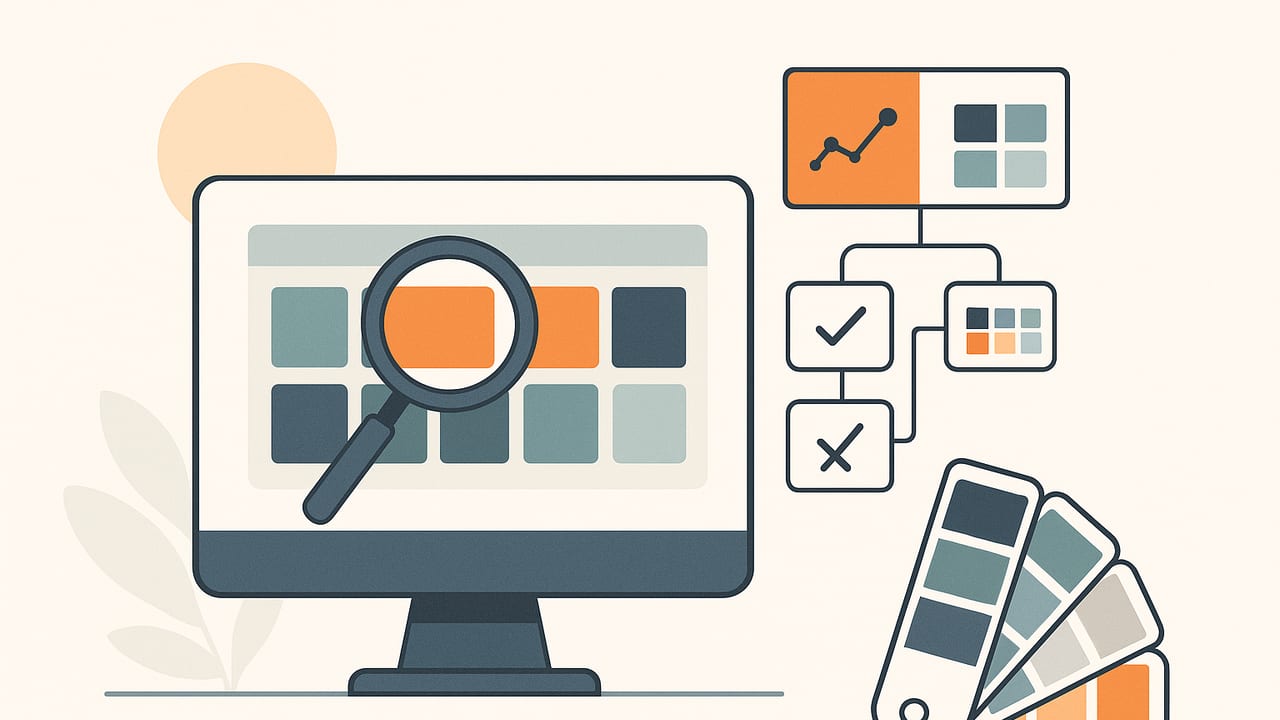
A great palette generator does more than pick pretty swatches. It translates visual inspiration into a dependable color system you can design with: consistent hues, flexible tints and shades, and accessible contrast across interfaces and print. This guide explains how palette generators work, compares common algorithms, and gives you a practical workflow for turning photos, brand cues, or mood boards into production-ready color palettes.
What a Palette Generator Actually Does
A palette generator analyzes one or more inputs—often a photo, screenshot, or set of brand colors—and outputs a small set of representative swatches. These swatches are usually provided as HEX, RGB, HSL, or LAB values, and may be grouped by roles (primary, secondary, accent, neutral). Good generators include tools for refinement: removing near-duplicates, balancing saturation, naming, and exporting to design and code formats.
Use a palette generator when you need to:
- Extract a color story from photography or a mood board.
- Compress a large color set (e.g., UI tokens, chart series) into a coherent palette.
- Quickly explore harmonies (analogous, complementary, triadic) and test accessibility.
- Translate between color models (HEX/RGB/HSL/LAB) and export to CSS, ASE, GPL, or ACO.
How Palette Generators Work: The Core Steps
- Sampling: Downsample the image(s) to reduce noise, often via a grid or random sampling.
- Color space selection: Work in RGB (device space), HSL/HSV (intuitive hue-saturation-lightness), or CIE LAB/LCH (more perceptually uniform).
- Clustering/quantization: Group similar colors into clusters to find representative centroids.
- Post-processing: Sort by hue, remove near-duplicates, balance saturation/lightness, enforce minimum contrast between roles.
- Export and naming: Provide HEX/RGB/HSL values, semantic names (e.g., "Primary 500"), and optional harmony variants.
Popular Algorithms Behind Palette Generators
- Median Cut: Recursively splits color space into boxes with roughly equal pixel counts, then samples a representative color from each box. Fast and simple; can produce boxy results in RGB.
- MMCQ (Modified Median Cut Quantization): A refined median cut that improves box selection and representative color choice. Common in web-based palette tools.
- K-Means Clustering: Iteratively assigns pixels to k clusters, moving centroids until convergence. Good control over cluster count; quality improves in LAB/LCH; may require multiple initializations.
- Octree Quantization: Builds an octree of RGB colors and prunes nodes to reach the target palette size. Efficient for large images; good for embedded systems.
- Agglomerative (Hierarchical) Clustering: Merges colors bottom-up using a distance metric (e.g., ΔE2000 in LAB). High quality and control; slower for large datasets.
- GMM (Gaussian Mixture Models): Models colors as mixtures of Gaussians; can capture elongated clusters (e.g., skin tones). More complex; needs careful initialization.
Algorithm Comparison at a Glance
| Algorithm | Speed | Control | Consistency | Best For |
|---|---|---|---|---|
| Median Cut | Very fast | Low | Medium | Quick previews, low-power devices |
| MMCQ | Fast | Medium | Medium–High | Web palette extraction, thumbnails |
| K-Means (in LAB) | Medium | High | High (with multiple seeds) | Curated palettes with control over k |
| Octree | Fast | Medium | Medium | Large images, embedded/real-time |
| Hierarchical (ΔE2000) | Slow | Very High | Very High | Brand palettes, small curated sets |
| GMM | Medium–Slow | High | High | Skin tones, nuanced photographic palettes |
From Photo to Production Palette: A Practical Workflow
- Define intent and constraints. What must the palette do? UI roles (primary, surface, text, states)? Chart categories? Print and screen?
- Gather sources. Choose 1–3 photos that reflect the desired mood under similar lighting. Avoid mixing warm indoor and cool daylight shots unless that blend is intentional.
- Extract candidates. Run a palette generator with 12–20 colors in LAB/LCH. Over-extract now; you will curate later.
- Curate anchors. Pick 5–8 distinct anchors: a primary, secondary, accent, and a neutral ramp (two light, one mid, one dark).
- Assign roles. Name swatches by purpose (Primary 500, Primary 700, Accent 400, Neutral 50/100/900). Consider a scale (50–900) for consistency.
- Check contrast. Verify WCAG contrast for all text-on-surface combinations (details below). Adjust lightness in LCH to meet ratios.
- Prototype. Test in small UI mockups (buttons, form fields, alerts) or chart samples. Watch for vibrating color pairs and legibility in disabled states.
- Export. Save HEX/RGB/HSL values, generate CSS variables, and export ASE/ACO/GPL for design apps. Version your palette so changes are tracked.
Accessibility: Contrast and Perception
Two palettes can look similar but behave very differently in real interfaces. Always validate contrast and perception:
- WCAG contrast ratios: For normal text, target 4.5:1 (AA) or 7:1 (AAA). For large text (≥18pt regular or 14pt bold), 3:1 (AA) or 4.5:1 (AAA).
- Perceptual uniformity: Adjust in LCH or LAB when balancing tints and shades so steps feel even to the eye.
- Color blindness simulations: Test for Deuteranopia/Protanopia/Tritanopia; ensure states differ by lightness and pattern, not color alone.
| Use Case | Minimum Contrast | Recommended |
|---|---|---|
| Body text | 4.5:1 (AA) | 7:1 (AAA) |
| Large headings | 3:1 (AA) | 4.5:1+ |
| Iconography | 3:1 (AA) | 4.5:1+ |
Quick Contrast Check in JavaScript
If your palette generator supports custom validation or you’re scripting your own checks, this snippet calculates WCAG contrast:
// Compute relative luminance and contrast ratio (WCAG 2.x)
const srgbToLin = c => {
  c = c / 255;
  return c <= 0.04045 ? c / 12.92 : Math.pow((c + 0.055) / 1.055, 2.4);
};
const luminance = ([r, g, b]) => 0.2126 * srgbToLin(r) + 0.7152 * srgbToLin(g) + 0.0722 * srgbToLin(b);
const contrastRatio = (rgb1, rgb2) => {
  const L1 = luminance(rgb1), L2 = luminance(rgb2);
  const [light, dark] = L1 > L2 ? [L1, L2] : [L2, L1];
  return (light + 0.05) / (dark + 0.05);
};
// Example: HEX to RGB helper
const hexToRgb = hex => hex.match(/[\da-f]{2}/gi).map(v => parseInt(v, 16));
console.log(contrastRatio(hexToRgb('1a1a1a'), hexToRgb('ffffff')).toFixed(2)); // e.g., 12.63
Build Your Own: A Minimal JS Palette Generator (K-Means)
This example extracts k dominant colors from an image using a HTML canvas and k-means in LAB for better perceptual results. It’s simplified, but shows the core steps.
// Requires an <img id="source" /> loaded in the DOM
async function extractPalette(imgEl, k = 6, maxIters = 12) {
  const canvas = document.createElement('canvas');
  const ctx = canvas.getContext('2d');
  const w = canvas.width = 200; // downsample
  const h = canvas.height = Math.round(imgEl.height * (200 / imgEl.width));
  ctx.drawImage(imgEl, 0, 0, w, h);
  const { data } = ctx.getImageData(0, 0, w, h);
  // Collect pixels (skip alpha = 0)
  const pixels = [];
  for (let i = 0; i < data.length; i += 4) {
    if (data[i + 3] > 0) pixels.push([data[i], data[i + 1], data[i + 2]]);
  }
  // Convert to LAB for clustering
  const labPixels = pixels.map(rgbToLab);
  // Init centroids by random sampling
  let centroids = labPixels.sort(() => Math.random() - 0.5).slice(0, k);
  for (let iter = 0; iter < maxIters; iter++) {
    const clusters = Array.from({ length: k }, () => []);
    for (const p of labPixels) {
      let best = 0, bestD = Infinity;
      for (let c = 0; c < k; c++) {
        const d = labDist(p, centroids[c]);
        if (d < bestD) { bestD = d; best = c; }
      }
      clusters[best].push(p);
    }
    // Recompute centroids
    const newCentroids = clusters.map(cluster => {
      if (cluster.length === 0) return centroids[Math.floor(Math.random()*k)];
      const sum = cluster.reduce((a, p) => [a[0]+p[0], a[1]+p[1], a[2]+p[2]], [0,0,0]);
      return sum.map(v => v / cluster.length);
    });
    // Convergence check
    const shift = newCentroids.reduce((acc, c, i) => acc + labDist(c, centroids[i]), 0);
    centroids = newCentroids;
    if (shift < 0.1) break;
  }
  // Convert back to HEX and sort by hue
  const hex = centroids.map(labToRgb).map(rgbToHex).sort((a, b) => hue(a) - hue(b));
  return hex;
}

// --- Color helpers (approximate) ---
function rgbToHex([r,g,b]) { return [r,g,b].map(v => v.toString(16).padStart(2,'0')).join(''); }
function hue(hex) { const [r,g,b]=hexToRgb(hex); const hsl = rgbToHsl(r,g,b); return hsl[0]; }
function labDist(a,b){ const dl=a[0]-b[0], da=a[1]-b[1], db=a[2]-b[2]; return Math.sqrt(dl*dl+da*da+db*db); }
// Implement rgbToLab, labToRgb, rgbToHsl, hexToRgb (omitted for brevity in article)
Notes:
- Run k-means in LAB/LCH to reflect perceptual differences.
- Use multiple random initializations and keep the best inertia for more stable results.
- After clustering, merge near-duplicates based on ΔE2000 to ensure distinct swatches.
Evaluating a Palette Generator Before You Commit
Whether you build or buy, evaluate your palette generator with these criteria:
- Color accuracy: Uses LAB/LCH internally? Supports ΔE2000 for distance?
- Control: Can you lock an anchor color, set role counts, or bias saturation?
- Consistency: Stable results across runs, images, and lighting conditions.
- Speed and privacy: On-device processing for sensitive images; responsive with large files.
- Export formats: HEX/RGB/HSL plus tokens (CSS variables, JSON), ASE/ACO/GPL for design apps.
- Naming: Automatic names (e.g., hue-family + scale) to keep teams aligned.
- Accessibility: Built-in contrast checks and color-blind safe previews.
Common Pitfalls (And Quick Fixes)
- Oversaturated anchors: Photos often push intense accents. Dial back saturation for UI primaries; keep vibrancy for accents only.
- Muddy neutrals: Mixed lighting yields brownish grays. Convert to LCH and set chroma near zero; reuse just noticeable hue tints to keep warmth/coolth intentional.
- Too many colors: Limit UI palettes to 6–10 core swatches plus neutrals. For charts, use 8–12 with clear lightness differences.
- Ignoring contrast: Always verify text/surface pairs. Adjust L in LCH instead of brute-force shifting RGB.
- Device gamut surprises: sRGB vs wide-gamut displays can shift perceived vibrancy. Preview on sRGB and P3 if possible.
- Inconsistent lighting sources: If mixing image sources, normalize white balance or extract per-image palettes and blend thoughtfully.
Example Walkthrough: 8-Color Palette from a Beach Photo
Imagine a coastal sunrise photo with coral highlights, teal water, and sandy neutrals. Here’s a concise flow:
- Run k-means (k=12) in LAB to over-extract candidates.
- Keep 8 anchors after merging near-duplicates via ΔE2000 < 8.
- Assign roles and verify contrast against a near-white surface.
Resulting swatches (sample HEX):
- Primary 500: #1f7a8c (teal)
- Primary 700: #155a66
- Accent 400: #ff7a6e (coral)
- Accent 700: #c9564e
- Neutral 50: #faf8f6 (soft sand)
- Neutral 200: #e5dfd7
- Neutral 600: #7a746c
- Neutral 900: #2f2c28
Contrast checks (Neutral 900 on Neutral 50 for body text) exceed 12:1; Primary 500 on Neutral 50 meets AA for normal text; Accent 400 works for buttons on Neutral 900 with AA large text. Tweak LCH lightness by ±5 to fine-tune edges of compliance.
FAQ
How many colors should a palette generator return?
For UI design, 6–10 well-spaced colors plus a 4–6 step neutral ramp is typical. For data visualization, aim for 8–12 categories, prioritizing lightness differences and color-blind safety.
Which color space is best for clustering?
Cluster in LAB or LCH for perceptual uniformity, then convert to HEX/RGB/HSL for delivery. RGB clustering is fast but can merge perceptually distinct hues.
Are algorithmic palettes unique?
They’re reproducible given the same inputs and settings. If you want uniqueness, lock anchors, apply harmony constraints, and document seed/config values.
Can I use a palette generator for brand systems?
Yes, but treat it as a starting point. Use a generator to find candidates, then curate, test across media, and standardize roles, naming, and usage guidelines.
If you prefer an on-device workflow on iPhone or iPad, Color Viewfinder offers quick extraction of HEX, RGB, HSL/HSB from photos and flexible palette exports, handy for designers and decorators.