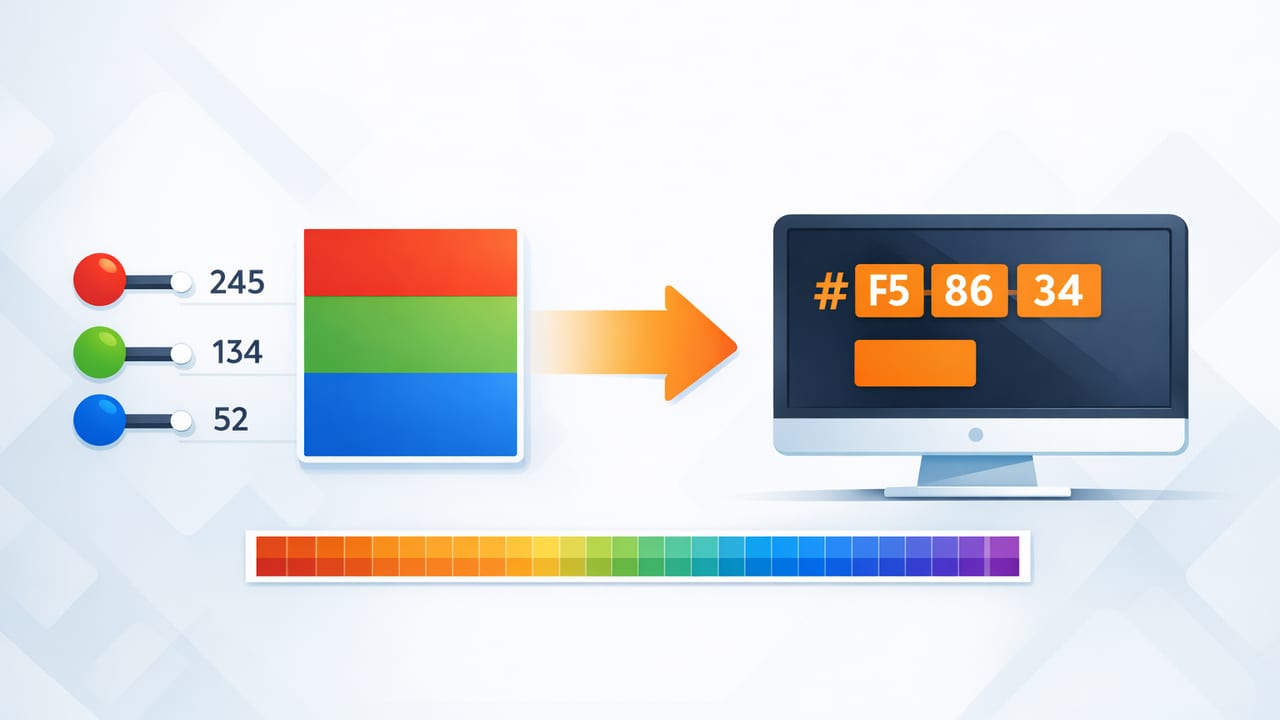
If you’ve ever copied a color from one tool and watched it look “slightly off” somewhere else, the problem often isn’t your eye—it’s the color format, rounding, or an unexpected color profile. That’s why understanding an rgb hex converter workflow (and what it should output) is a practical skill for graphic design, UI, branding, and even interior mood boards.
This guide explains what RGB and HEX mean, how conversion works, how to avoid common pitfalls, and how to use converted values in real projects—whether you’re building a design system, matching paint to digital mockups, or extracting colors from photography.
RGB vs HEX: what’s the difference?
RGB stands for Red, Green, Blue. It’s an additive color model: you combine light to create colors. RGB is commonly written as three integers from 0–255, such as rgb(255, 99, 71).
HEX is a hexadecimal (base-16) way to represent the same RGB values, typically as #RRGGBB. Each pair is one channel:
RR= red (00–FF)GG= green (00–FF)BB= blue (00–FF)
So RGB and HEX usually describe the same color in the same color space—just in different notation. A reliable rgb hex converter should round correctly, preserve channel order, and (when relevant) handle alpha/transparency consistently.
Design takeaway: RGB is convenient for calculations and UI sliders; HEX is convenient for copying into CSS, tokens, and many design tools.
How RGB-to-HEX conversion works (the exact math)
Each RGB channel is an integer from 0 to 255. HEX uses base-16 digits: 0–9 and A–F. Converting a channel from decimal to hex is straightforward:
- Take the channel value (0–255).
- Convert to base-16.
- Pad with a leading zero if it’s a single digit.
Example: Convert rgb(255, 99, 71) to HEX.
- 255 →
FF - 99 →
63 - 71 →
47
Result: #FF6347
Quick reference table: common conversions
| Color name | RGB | HEX | Notes |
|---|---|---|---|
| Black | rgb(0, 0, 0) | #000000 | All channels off |
| White | rgb(255, 255, 255) | #FFFFFF | All channels max |
| Pure Red | rgb(255, 0, 0) | #FF0000 | Primary channel |
| Pure Green | rgb(0, 255, 0) | #00FF00 | Primary channel |
| Pure Blue | rgb(0, 0, 255) | #0000FF | Primary channel |
| Tomato | rgb(255, 99, 71) | #FF6347 | Often used in UI examples |
HEX-to-RGB conversion (back the other way)
To convert #RRGGBB to RGB:
- Remove the
#. - Split into pairs:
RR,GG,BB. - Convert each pair from hex to decimal.
Example: #1E90FF →
1E= 3090= 144FF= 255
Result: rgb(30, 144, 255)
What about 3-digit HEX?
Some tools allow shorthand HEX like #0AF. Expand it by duplicating each digit:
#0AF→#00AAFF
What about alpha (transparency)?
Transparency is where “converter confusion” often starts:
- RGBA is written like
rgba(255, 99, 71, 0.5)(alpha 0–1). - 8-digit HEX may appear as
#RRGGBBAA(common on the web) or#AARRGGBB(used by some platforms).
If your rgb hex converter supports alpha, confirm which 8-digit order it uses before copying values into CSS, Android, or other pipelines.
Common RGB/HEX mistakes that cause “wrong color” bugs
1) Forgetting color profiles (sRGB vs Display P3)
Many modern devices can capture colors outside sRGB (wide gamut). A photo, screenshot, or camera sample might be tagged as Display P3. If you extract values without converting to sRGB (or your target platform assumes sRGB), the same numeric RGB/HEX can render differently.
Tip: For web UI and most design systems, assume sRGB unless you’re intentionally working in wide-gamut contexts and you know your pipeline supports it end-to-end.
2) Rounding and precision
Conversions involving HSL/HSB, gradients, or blending can produce fractional RGB values. Some tools round down, others round to nearest integer. A difference of 1–2 points per channel can be noticeable in flat UI surfaces.
3) Confusing BGR with RGB
Some low-level libraries store bytes as BGR (blue-first). If you’re building your own converter, check channel order before formatting #RRGGBB.
4) Copying the wrong HEX length
Copying #RGB into a context that expects #RRGGBB (or copying #RRGGBBAA into a system that expects #AARRGGBB) can shift channels and cause dramatic color changes.
A practical workflow: from photo to palette to implementation
Whether you’re designing a brand kit from a product photo or matching a room’s materials to digital mockups, conversion is only one step. Here’s a reliable sequence:
- Sample consistently: pick pixels from evenly lit areas; avoid specular highlights and heavy shadows.
- Collect 5–9 colors: include neutrals (off-white, mid-gray, near-black) plus 2–4 accents.
- Normalize format: store each color as both HEX and RGB (and optionally HSL for adjustments).
- Assign roles: background, surface, text, primary, secondary, border, accent.
- Check accessibility: verify text/background contrast before shipping.
Mini example: palette roles (with both HEX and RGB)
- Background:
#F7F3EE/rgb(247, 243, 238) - Text:
#1F2328/rgb(31, 35, 40) - Primary:
#2F6FED/rgb(47, 111, 237) - Accent:
#FF6347/rgb(255, 99, 71)
Storing both formats makes handoffs easier: developers often prefer HEX for tokens, while some motion/3D tools prefer RGB.
Code snippets: build your own RGB HEX converter
If you’re validating tool outputs—or building internal utilities—these snippets show the core logic.
JavaScript: RGB to HEX and HEX to RGB
// RGB (0-255) -> HEX (#RRGGBB)
function rgbToHex(r, g, b) {
  const toHex = (n) => n.toString(16).padStart(2, '0').toUpperCase();
  return `#${toHex(r)}${toHex(g)}${toHex(b)}`;
}

// HEX (#RRGGBB or #RGB) -> RGB object
function hexToRgb(hex) {
  let h = hex.replace('#', '').trim();
  if (h.length === 3) h = h.split('').map(c => c + c).join('');
  if (h.length !== 6) throw new Error('Invalid HEX color');

  const r = parseInt(h.slice(0, 2), 16);
  const g = parseInt(h.slice(2, 4), 16);
  const b = parseInt(h.slice(4, 6), 16);
  return { r, g, b };
}

console.log(rgbToHex(255, 99, 71)); // #FF6347
console.log(hexToRgb('#1E90FF'));    // { r: 30, g: 144, b: 255 }
CSS usage: keep values consistent with tokens
:root {
  --color-bg: #F7F3EE;
  --color-text: #1F2328;
  --color-primary: #2F6FED;
  --color-accent: #FF6347;
}

body {
  background: var(--color-bg);
  color: var(--color-text);
}

.button {
  background: var(--color-primary);
}

.button--accent {
  background: var(--color-accent);
}
Using HEX tokens keeps design handoffs clean. When you need computation (like generating tints), converting to RGB in code can be more convenient.
How to sanity-check converted values
Visual checks
- Render a solid swatch next to the source sample (photo crop or UI reference).
- Compare on at least two screens if possible (phone + laptop) to catch gamut surprises.
Numeric checks
- Ensure each channel is within
0–255(RGB) or00–FF(HEX). - Verify that converting RGB → HEX → RGB returns the same integers.
- If alpha is involved, confirm the expected notation (
#RRGGBBAAvs#AARRGGBB).
When an RGB/HEX converter isn’t enough
RGB and HEX are great for specifying a color on screens, but they don’t fully solve these real-world needs:
- Print matching: you may need CMYK conversions and paper/ink profiles.
- Paint and materials: physical samples change under lighting temperature and texture.
- Accessible UI: contrast, states (hover/pressed/disabled), and semantic roles matter as much as the raw values.
Think of an rgb hex converter as a foundation: it gives you precise identifiers for colors, but the design system work happens in how you use and validate those identifiers.
Conclusion
Accurate color work is less about finding “the perfect code” and more about creating a repeatable pipeline: sample carefully, convert reliably, store both RGB and HEX, and validate across contexts. Once your palette values are trustworthy, everything downstream—CSS tokens, brand guidelines, templates, and exports—gets faster and more consistent.
If you frequently extract colors from images on iPhone or iPad and want quick HEX/RGB readouts alongside palette layouts, a tool like Color Viewfinder can help streamline the capture-to-palette step.